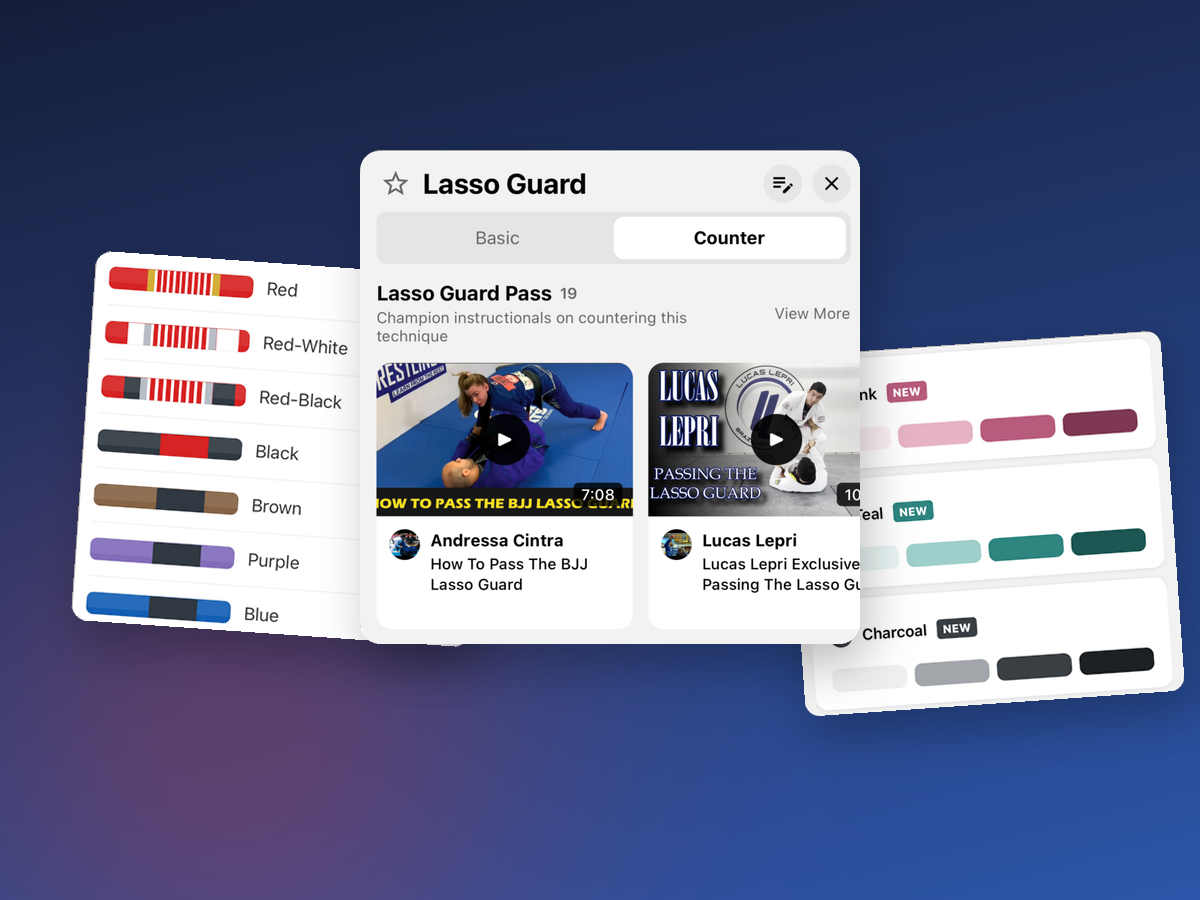
This November I worked on making belts broader and more accurate. I added black belt 5th and 6th degrees plus coral and red belts, and for purple, brown, and black belts you can now pick the rank bar color yourself.
I also added counters to the technique screen. Once you learn a technique, you start wondering how to stop or escape it. Now you can switch between the basic and the counter within a single technique and watch champions' lessons. I also touched up weight class names, weight units, and champion search. Here's a rundown of what changed this month.
Most of these features started from feedback you left in App Store reviews. Requests to record higher belts and to see counter techniques alongside each move shaped what I built this month.
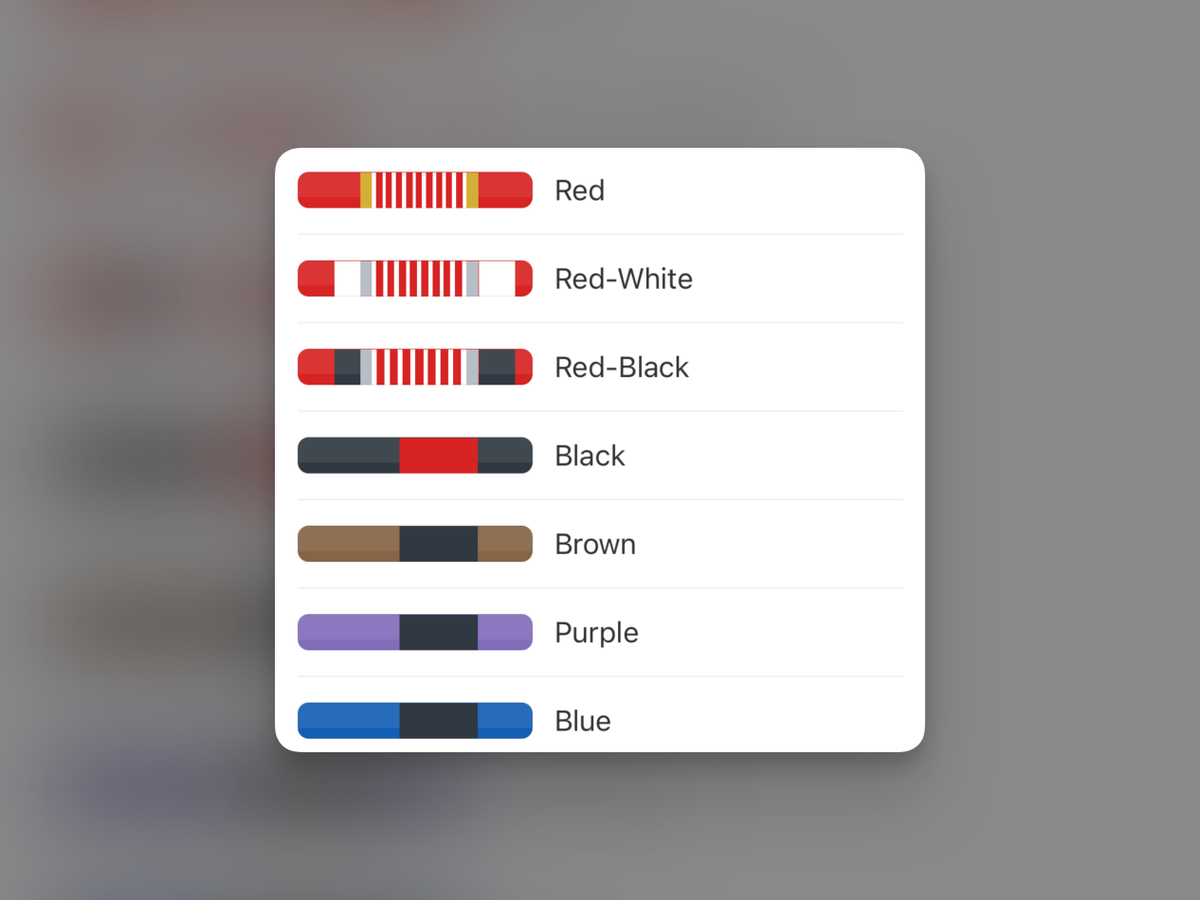
Coral and Red Belts, and Black Belt Up to 6th Degree
Until now, Post Black Belt could only show a black belt up to the 4th degree. If you'd trained longer than that, there was no way to keep your belt in the app as it really is.
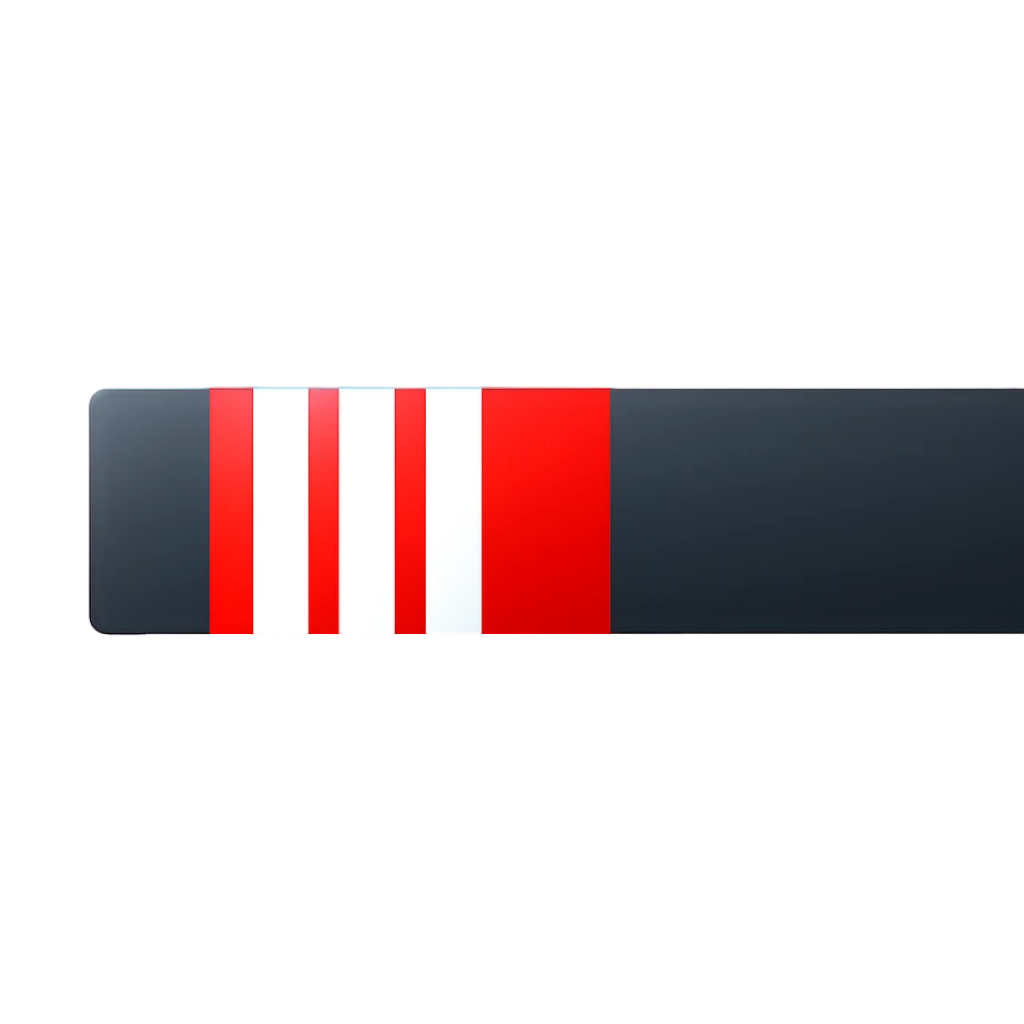
This time I added belts based on the IBJJF's June 2026 belt system. You can choose a black belt up to the 6th degree, along with the red-and-black coral belt (7th degree), the red-and-white coral belt (8th degree), and the red belt (9th degree). Each belt is drawn to look close to the real thing, with a wide white rank bar, red degree stripes, and silver and gold bars at both ends.
Rank Bar Colors to Match Your Belt
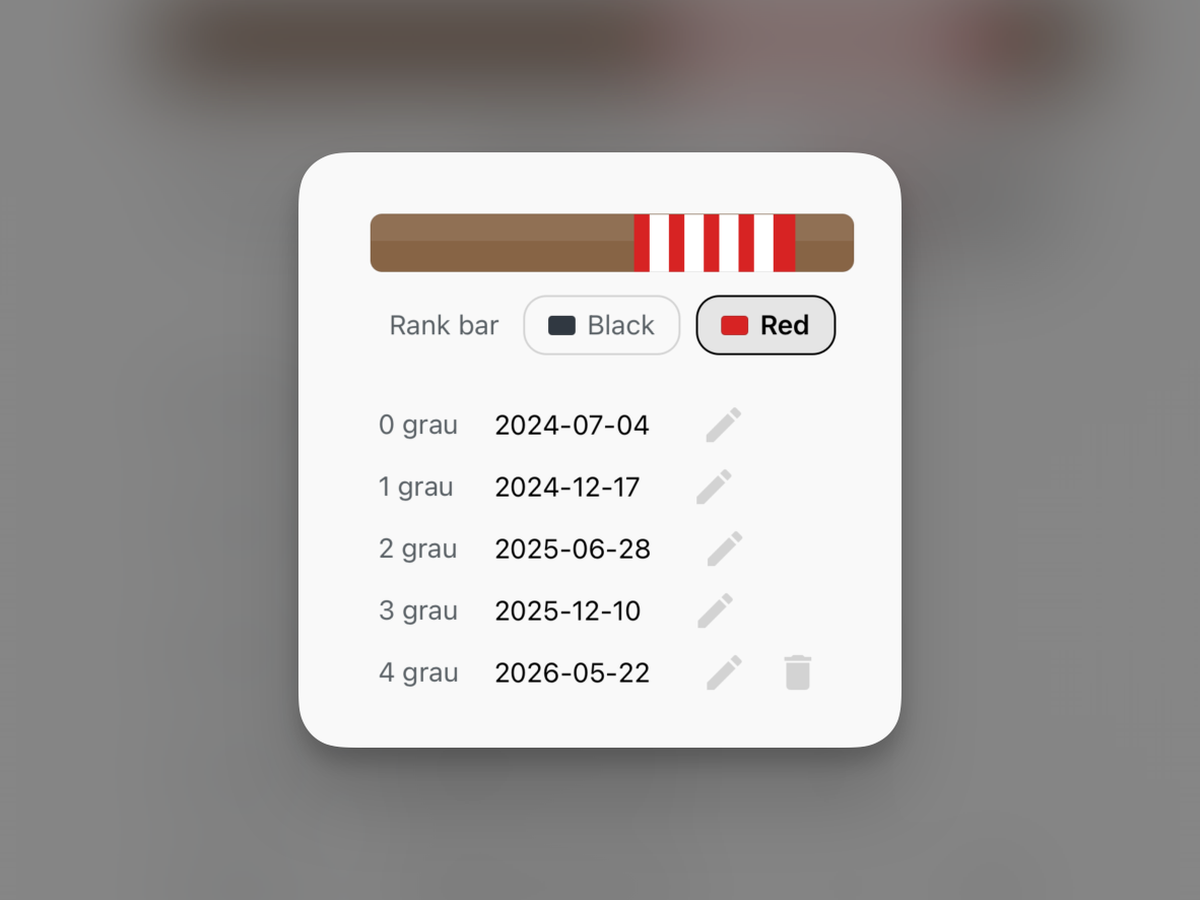
Even for the same belt, the rank bar color differs from gym to gym. Now purple and brown belts can choose between black (the default) and red, and black belts can choose between red (the default) and white. If you pick a white rank bar, the degree stripes are drawn in black.
You can change the color in belt editing, and you can also set it in the belt selection step of onboarding when you first start. The color you pick carries over not just inside the app but to the widget and the watch too.
Basic and Counter Together in One Technique
After you learn lasso guard, you naturally start wondering how to pass lasso guard. Until now, you had to go look up counter techniques like that separately.
Now you can switch between basic and counter right from the tabs at the top of the technique detail screen. The counter side gathers champions' lessons on stopping or escaping that technique, and below them it also shows counter YouTube videos and Shorts. You can also pick basic or counter on the athlete detail screen and in the champion library.
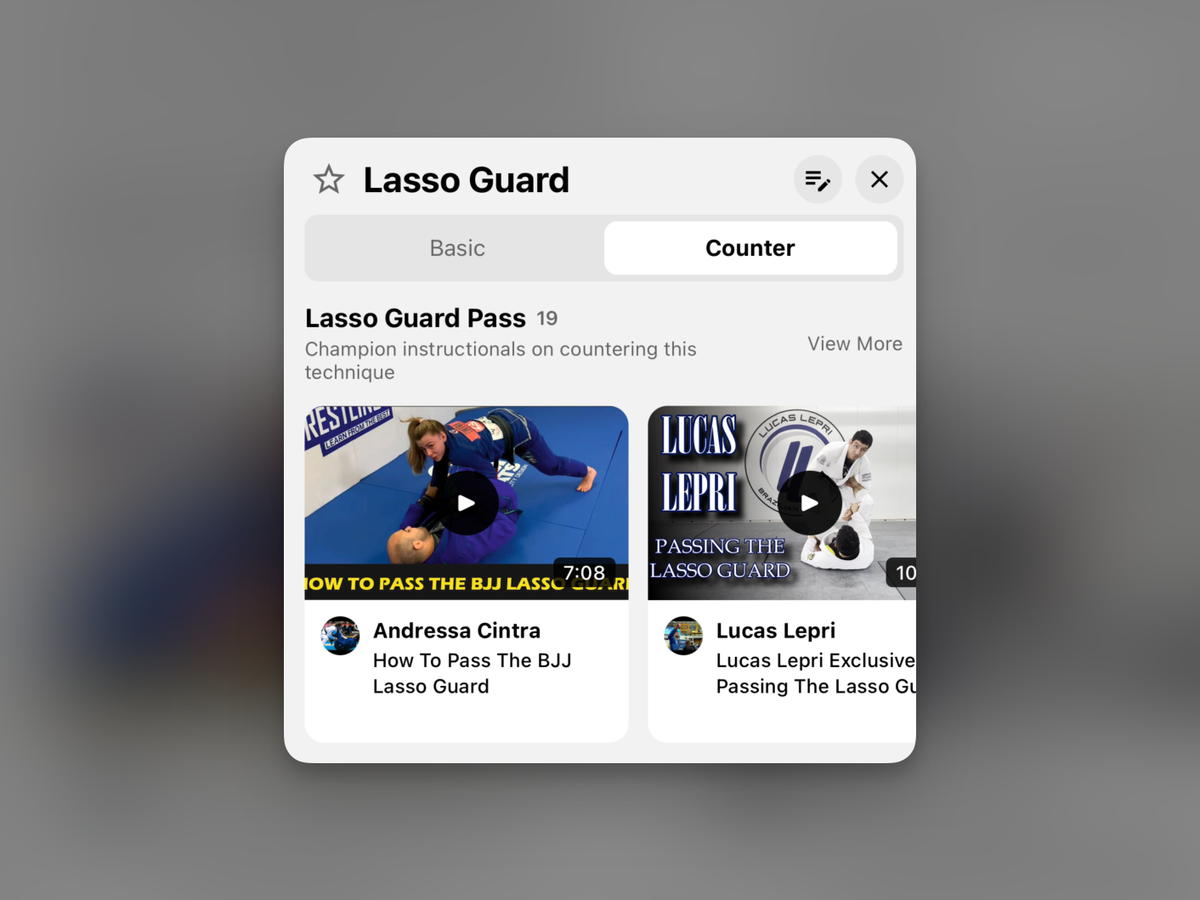
I cleaned up the technique detail screen too. The technique name, the basic/counter tabs, and the close button now sit on a single line that stays pinned to the top as you scroll, and long technique names show in full up to two lines. The previous/next technique flow moved to buttons on both sides of the screen, and tapping one opens the list of techniques that follow. Even if you keep flipping through techniques and champions, screens don't pile up on top of each other, so you can close everything at once and head back.
Weight Classes and Champions in Your Language
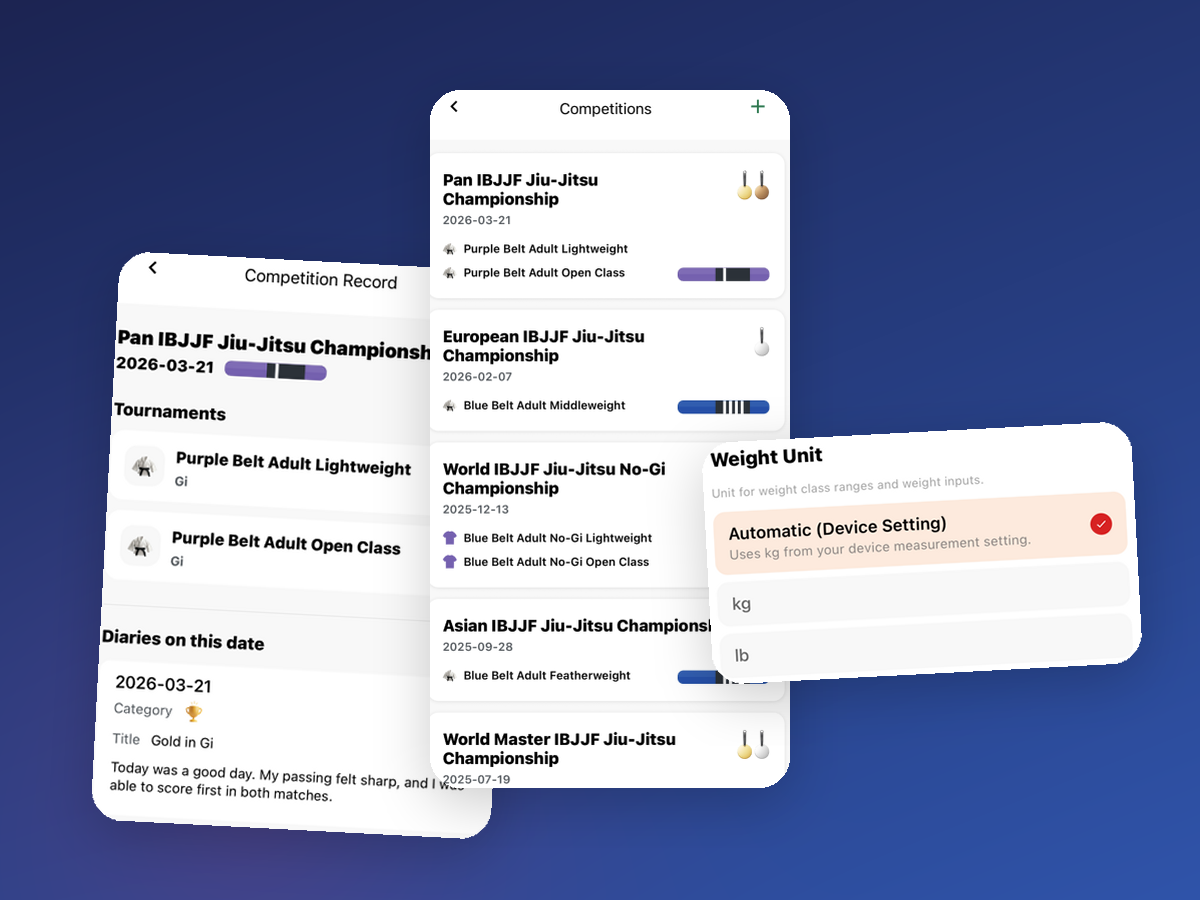
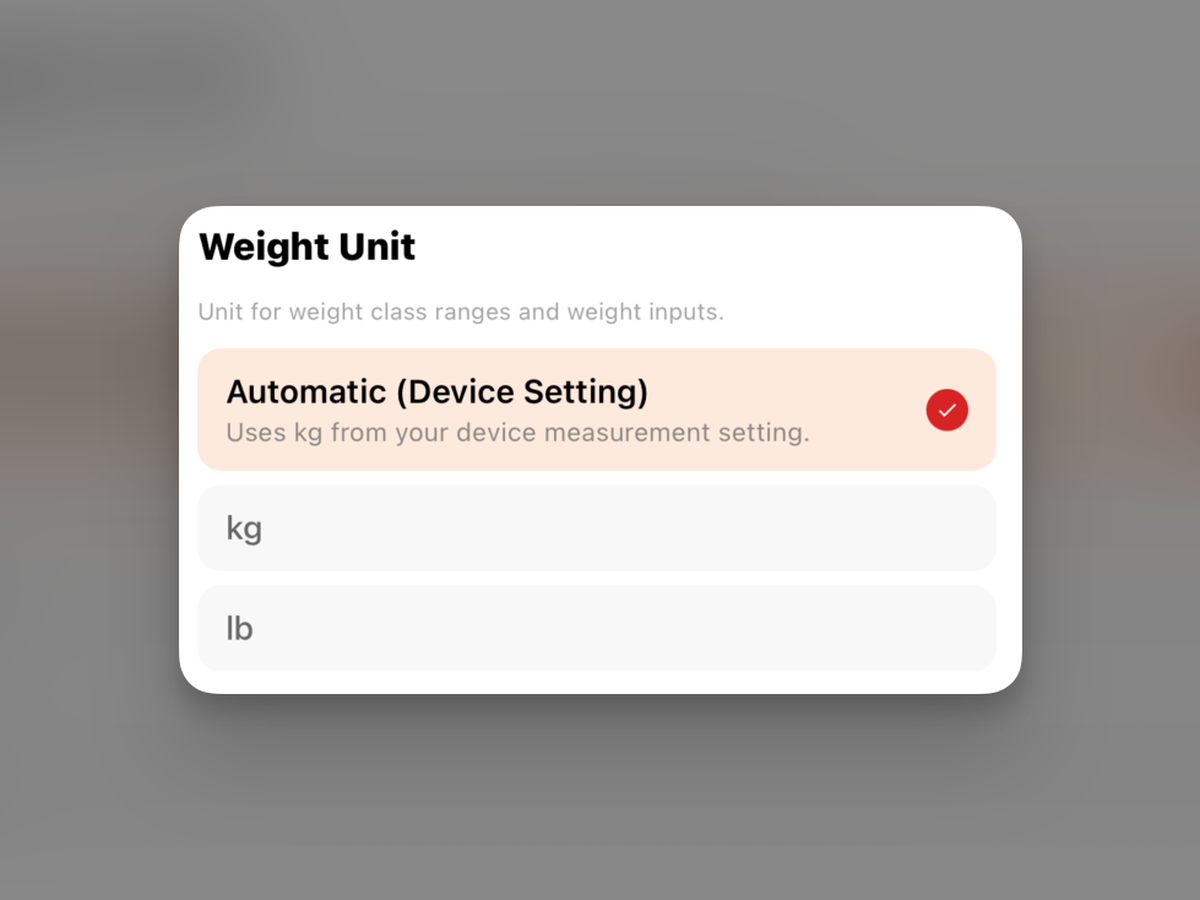
Weight class names now show in your app language. It's the same everywhere a weight class appears: champion cards, weight class selection, athlete details, and the role model on Home. Under Language · Country · Weight Unit in Settings, you can choose either kg or lb. If you don't pick one, it's set automatically to match your device settings, and weight class ranges and body weight entry also show in the unit you chose.
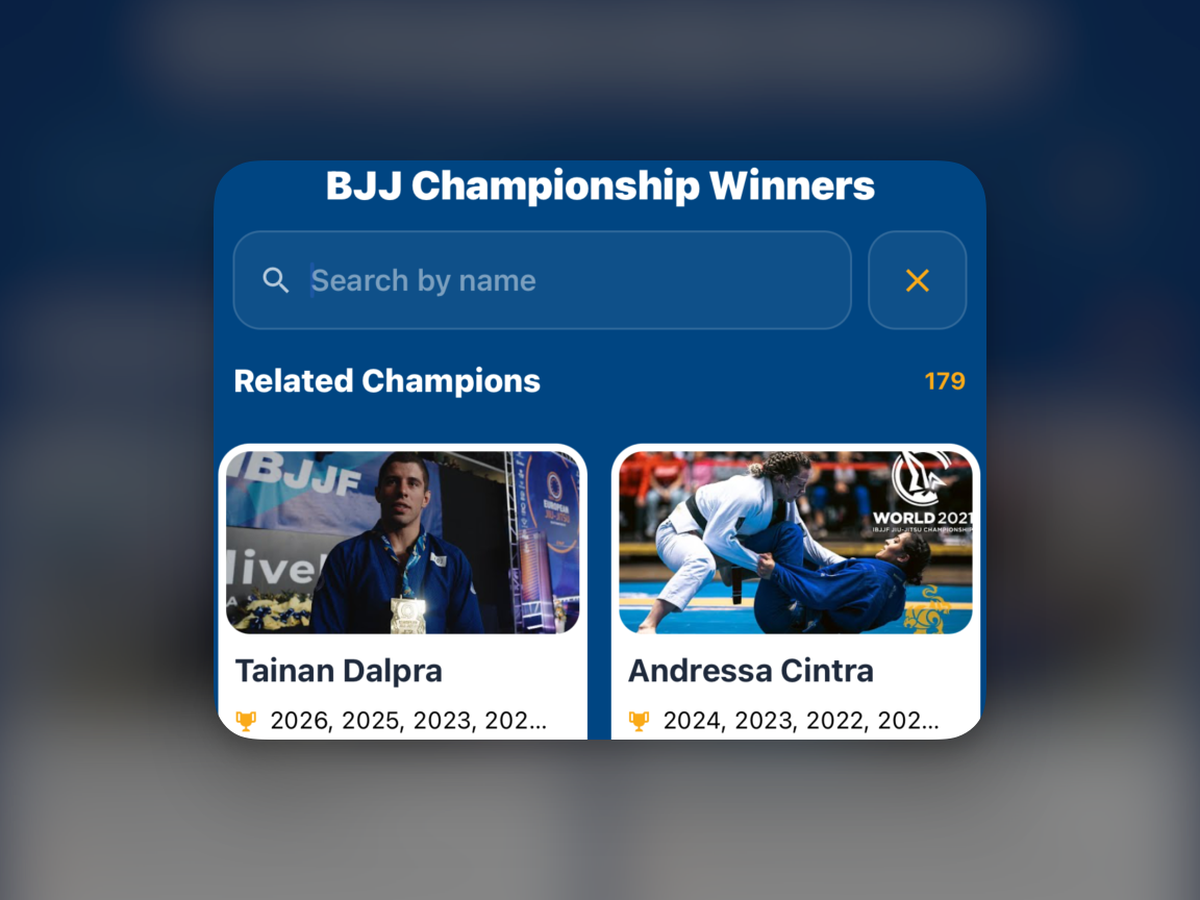
I also added no-gi to champions by weight class. When you pick an IBJJF weight class, it also shows champions from the overlapping ADCC weight classes, so you can look through gi and no-gi champions all at once.
You can also search for champions by name. On the Korean and Japanese screens, the athlete's name is written first the way it's read, with the English name in small text below. Search works with both names.
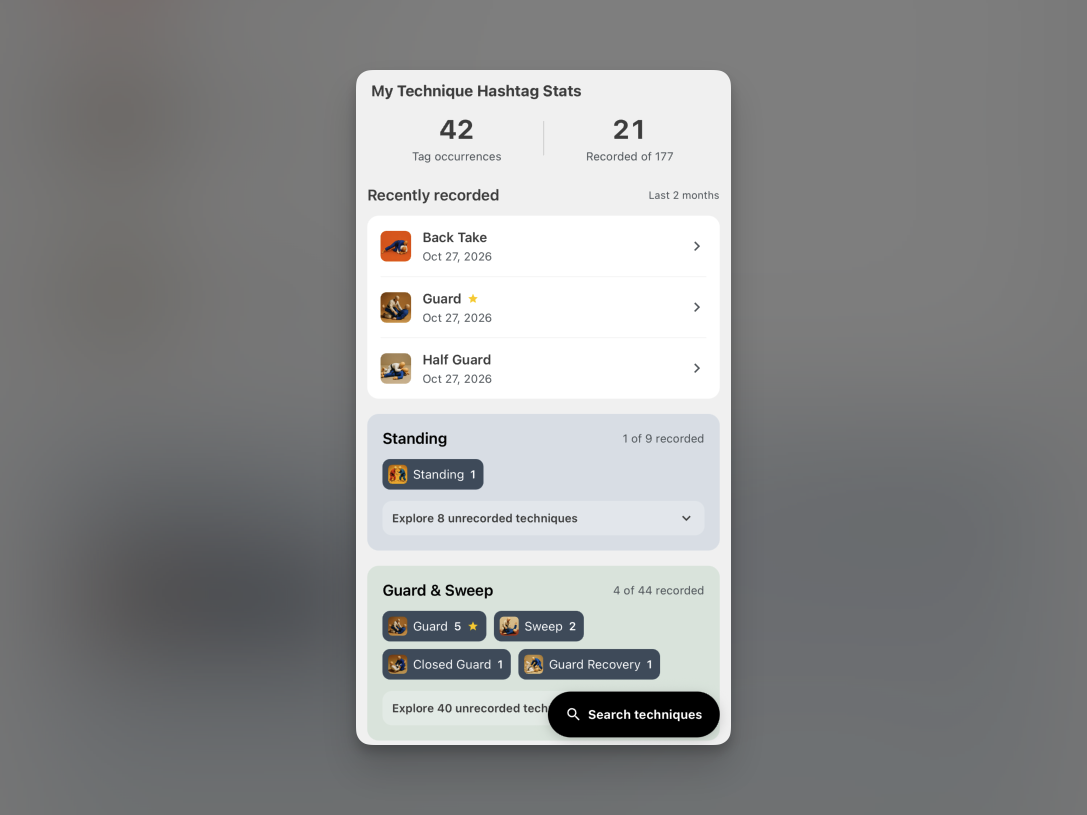
Searching Techniques from My Hashtags
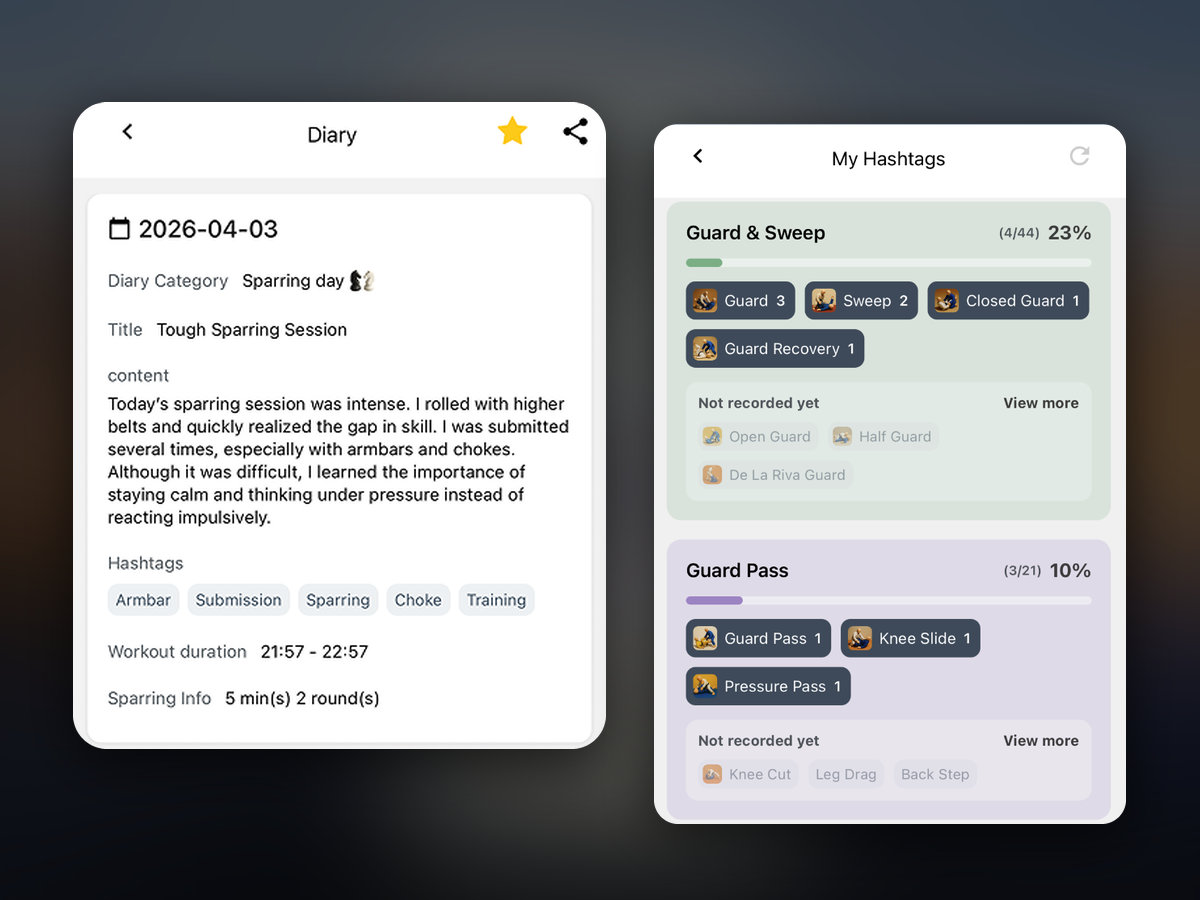
Once the hashtags and techniques you've collected while logging your training start to pile up, it can take a while to find what you want to look back at. Now you can also search hashtags you've added in the last 2 months, and the search carries through to techniques. You can jump straight to a technique you're interested in and look back at where your training focus has been lately.
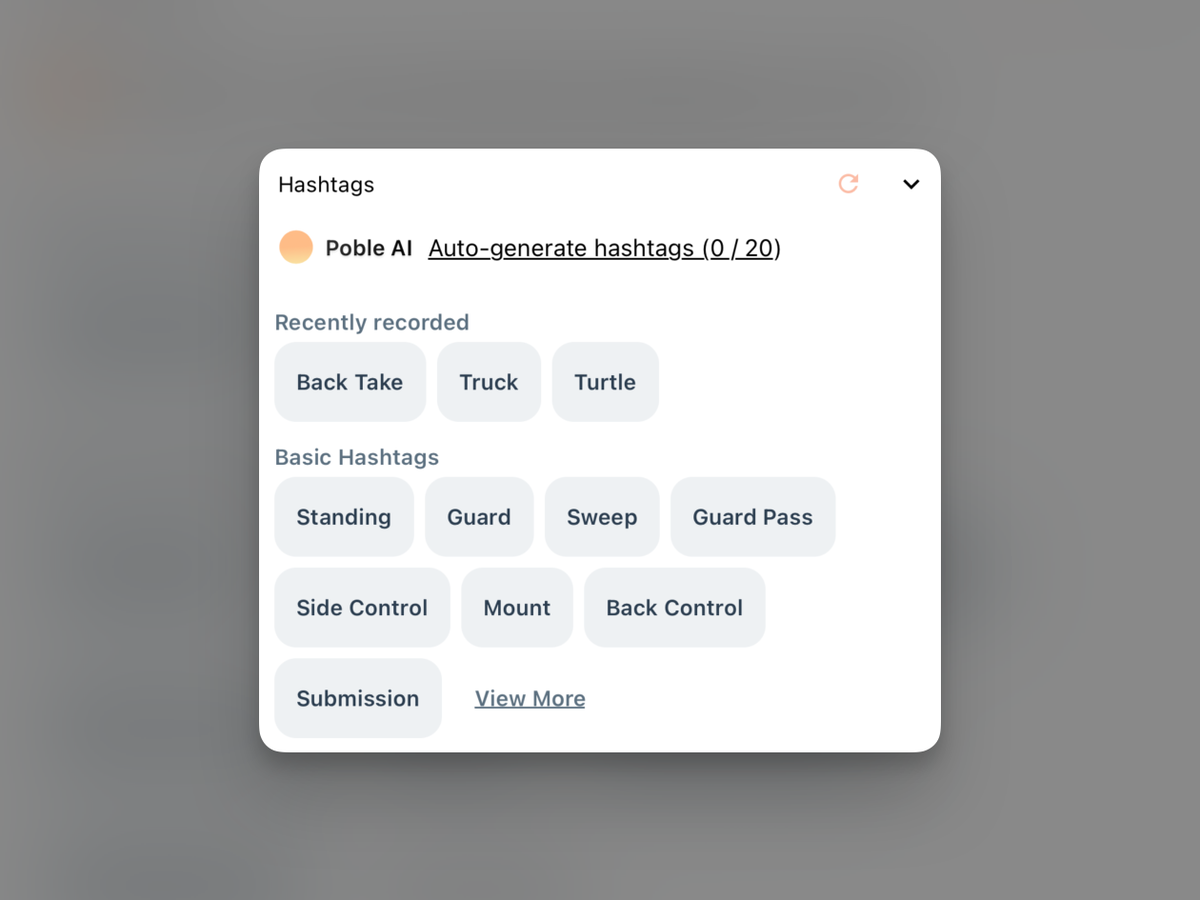
You can also add hashtags faster when writing a journal entry. You can pick hashtags you used in recent entries and drop them right in, so you don't have to retype the same technique names every time. I also tidied up how hashtags attached to an entry are shown so they fit more compactly.
Look through the search results and pick a technique you want to practice more in your next session. My hashtags go a step beyond organizing what you've learned so far, and become a starting point for deciding which techniques to keep working on.
New Color Themes and Preview
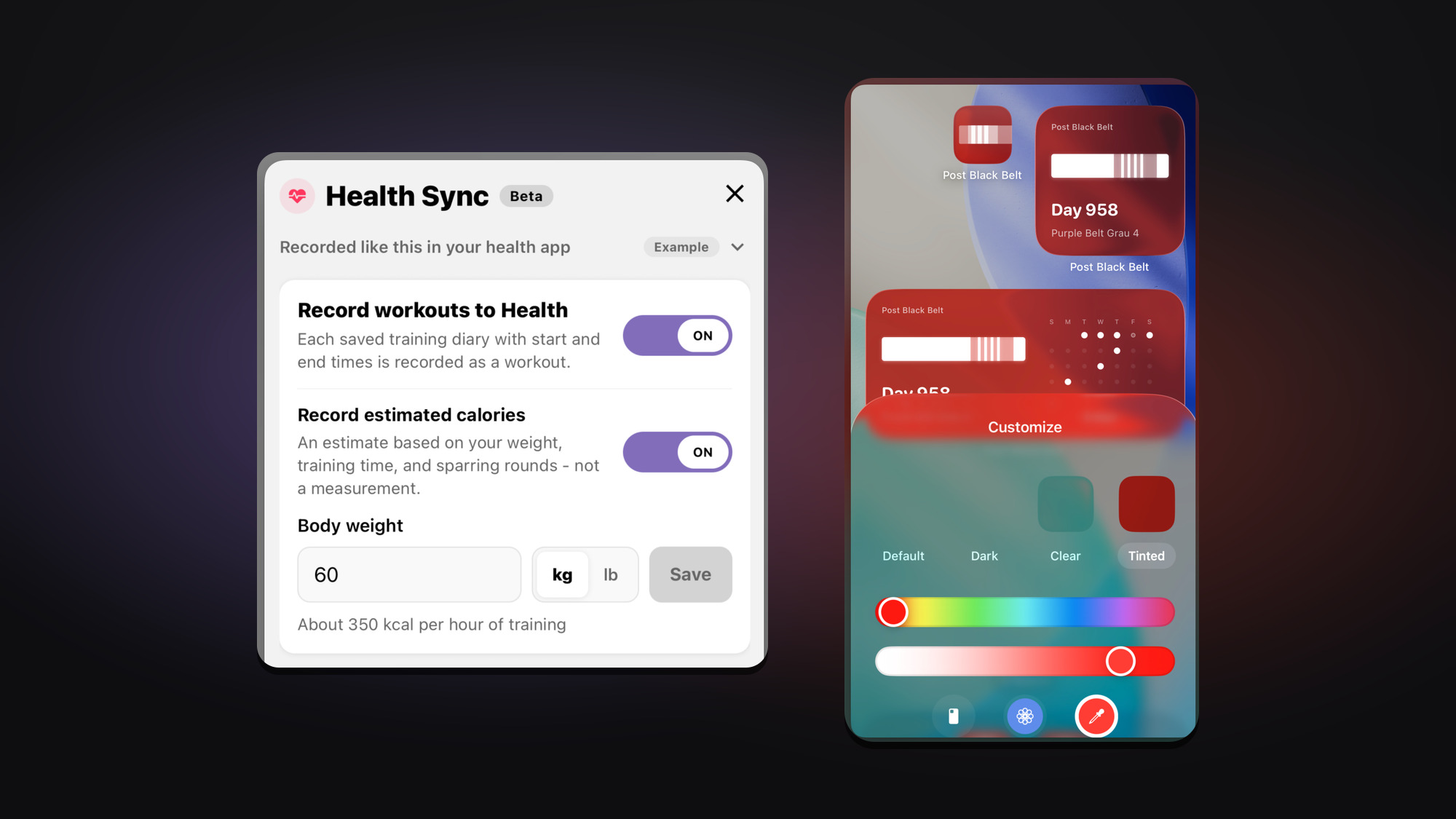
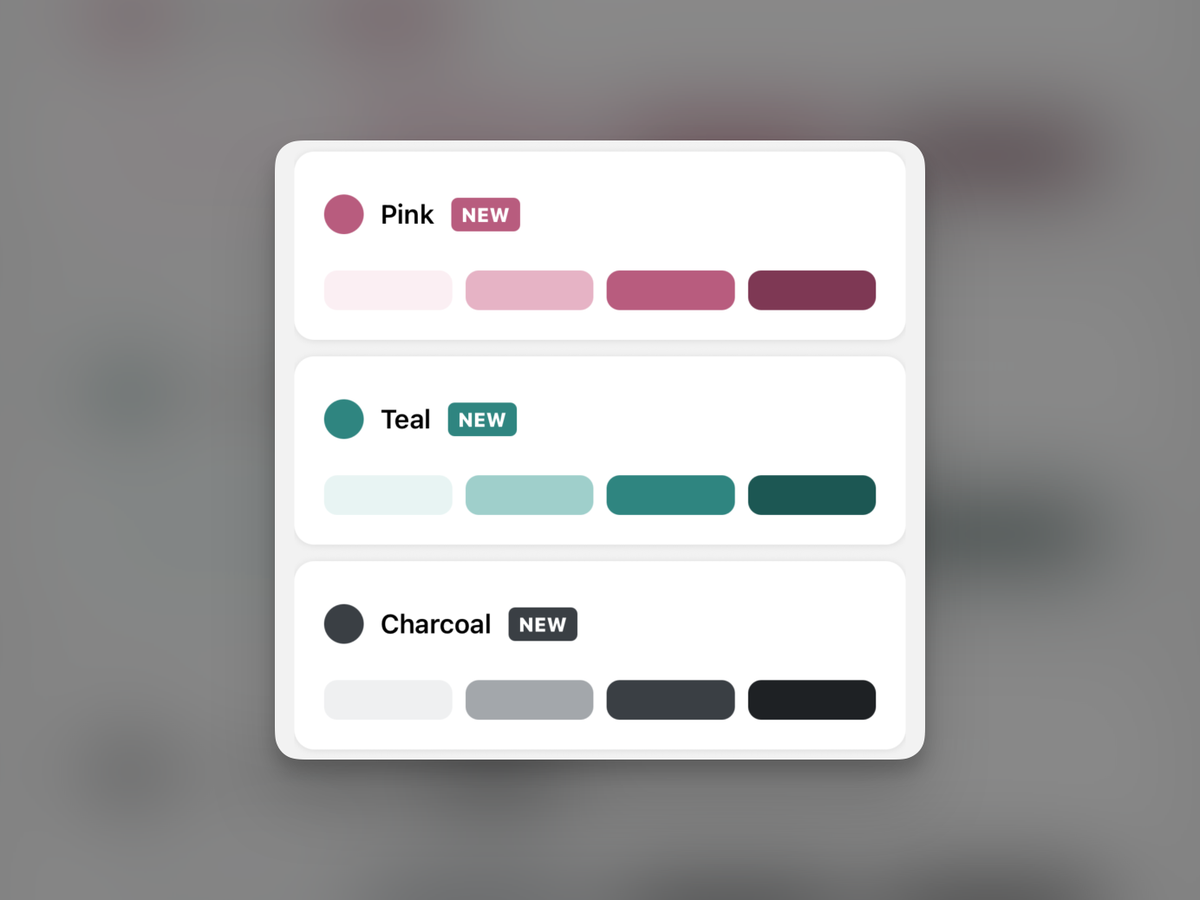
I added pink, teal, and charcoal to the color themes. Before applying a theme, you can check the feel of the app with a preview, and free users can view previews freely too. When you change the color theme or icon theme, a short notice also pops up to tell you it changed.
Other Improvements
I polished the random technique feed and the banner for browsing techniques, and I also tidied up the layout of the Today's Pick screen.
I also added a getting-started guide for Pro subscribers. From the mission card on Home and the "Start here" checklist on My Page, you can follow along step by step with things you can do with Pro, like color themes, icon themes, stickers, widgets, and recaps.
I refined translations across several languages and improved usability throughout the app.
Wrapping Up
This update, I spent my time making sure that the belts of people who've trained for a long time, and the rank bars that differ from gym to gym, can be kept in the app exactly as they are. And I added counters so that when you learn a technique, you can see its other side too.
Open the counter tab for a technique you learned today. If a belt doesn't look like the real thing, or there's a feature you need, I'd be grateful if you let me know anytime.
Many of this month's fixes also came from your feedback. If anything comes to mind while you use the app, reach out anytime through an App Store review or the in-app contact.