Aurora hunting is all about timing. Sky conditions can shift in just a few seconds while you open the app and check charts, and the best window can pass quickly. So this update focuses on widgets that let you check key forecasts without opening the app. This post briefly explains how to set up Aurora Eos widgets in your own way.
Widget Types
1. Home Screen Widget
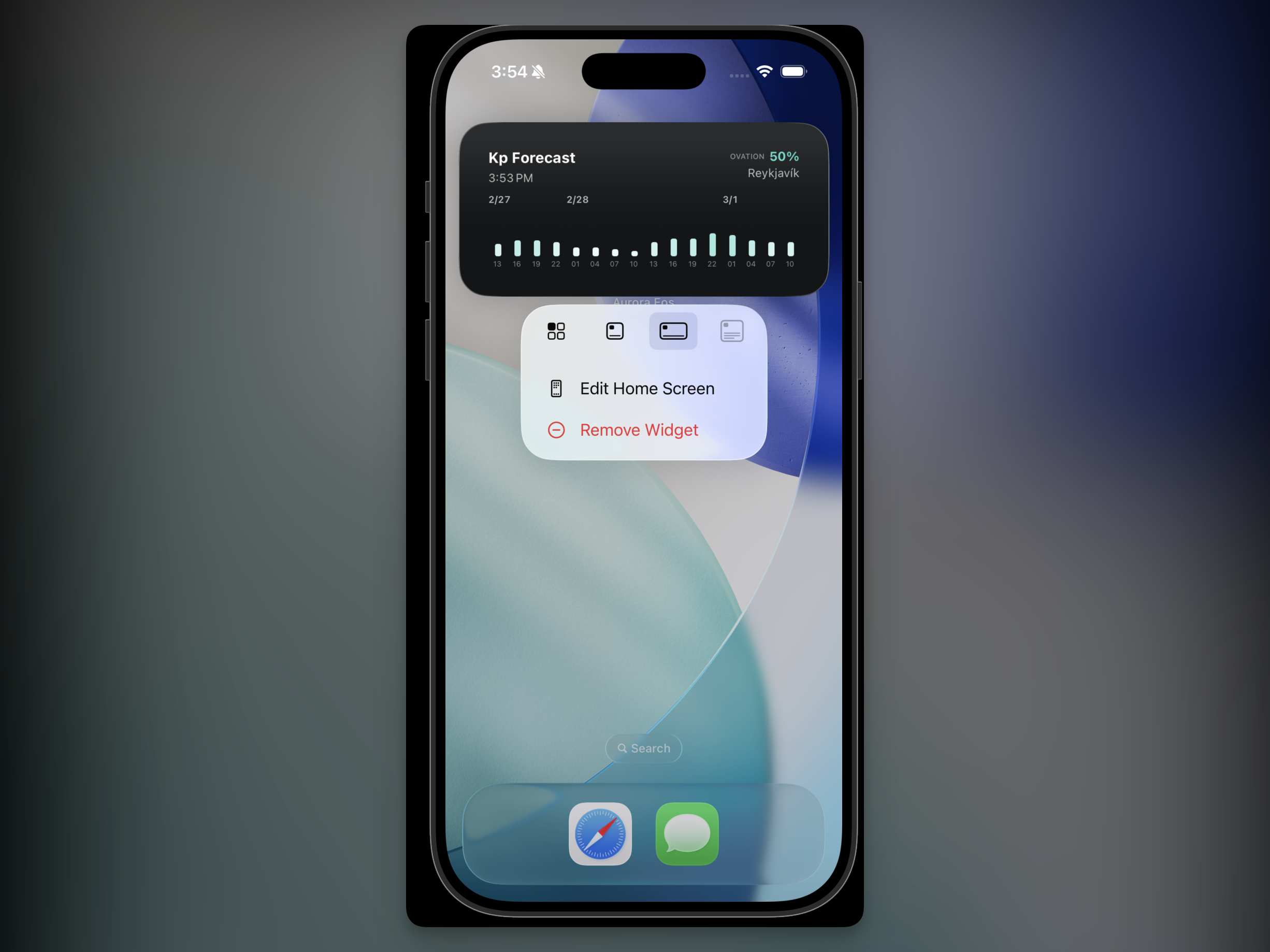
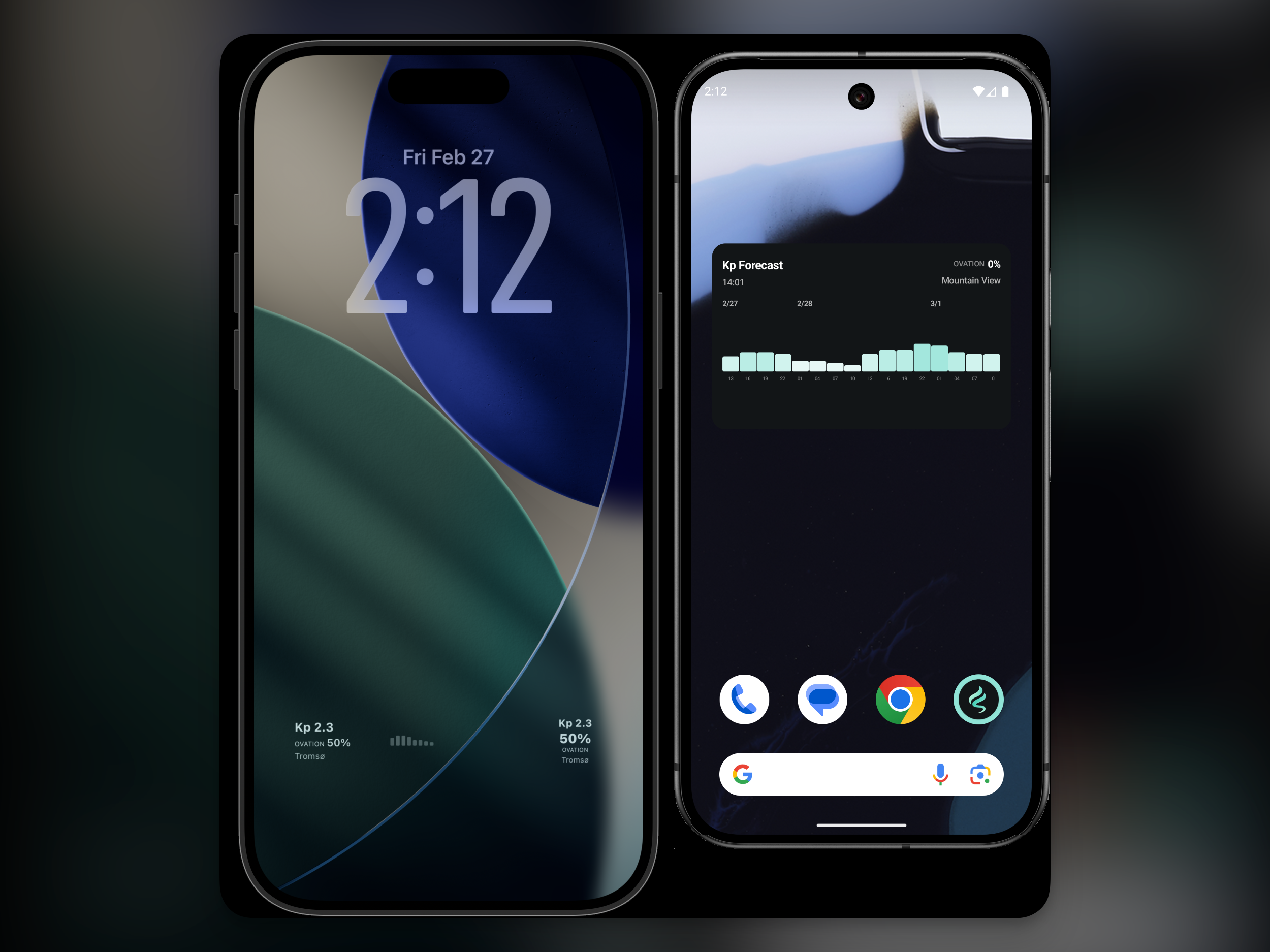
On the home screen, you can choose a widget that shows a wider set of information. It displays Kp forecast bars, location-based probability, and key status signals together, so it is easier to read both the current condition and what is likely coming next. As aurora conditions improve, the colors in the Ovation and Kp bar graph become deeper.
2. Lock Screen Widget
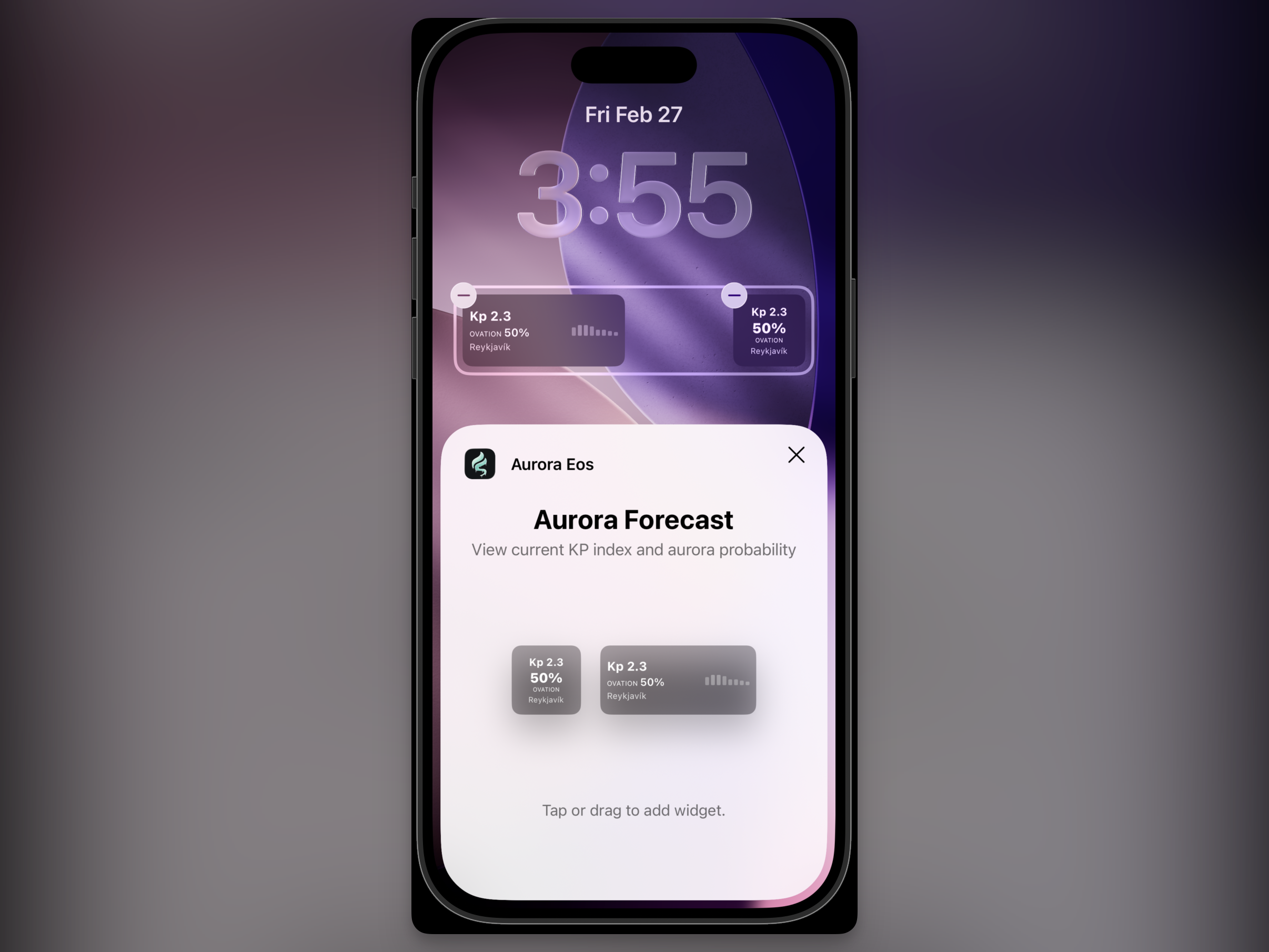
The lock screen widget is especially useful during aurora trips. You can check status quickly like checking the time, then open the app only when you need detailed data. This is particularly helpful when preparing for night observation.
Wrap-up
The goal of this widget setup is not to show more complex data, but to help you make aurora-hunting decisions faster. Aurora Eos will keep improving in a direction that is easy for beginners to understand and useful in real field conditions. If you have preferred widget styles or indicators you want to track, feedback is always welcome.