Wear OS tiles are the full-screen cards you reach by swiping left from your watch face. To add one, swipe to the end of your tiles and tap Add tile (newer watches say Add widget). To reorder, touch and hold a tile and drag it. To remove one, touch and hold it and tap the red minus. You can do all of this from your phone as well, in Galaxy Wearable or the Pixel Watch / Wear OS app.
The harder part is deciding what goes where. Recent Galaxy watches hold up to 15 tiles, but you will really only use the two or three closest to your watch face. This guide covers the how-to first, then the best Wear OS tiles to keep up front if you work out regularly.
Wear OS tiles vs widgets vs complications
- Tiles are one-screen views beside your watch face: a start-workout button, a heart rate graph, the weather. On the latest One UI Watch and Wear OS versions the same thing is labeled widgets. Tiles and widgets on the watch are the same feature; they are not your phone's home screen widgets.
- Complications are the small slots on the watch face itself: steps, battery, a countdown. They show one number every time you check the time.
A simple rule: numbers you want every time go in a complication, screens you check now and then go in a tile. Many apps offer both, and they work best together: a countdown in a complication, the detailed view in a tile.
How to add tiles on Wear OS and Galaxy Watch
On the watch
- From the watch face, swipe from right to left.
- Keep swiping to the last item and tap Add tile or Add widget. On some Wear OS watches you first touch and hold the screen.
- Pick the tile you want.
On the phone
- Galaxy Watch: open Galaxy Wearable, tap Tiles (or Widgets), tap the + next to a tile under Add tiles, then tap Save.
- Pixel Watch and other Wear OS watches: open the watch's companion app, tap Tiles (or Widgets), then tap Add.
If you hit the 15-tile limit on a Galaxy Watch, remove one before adding another. If an app's tile is missing from the list, check that the app is installed on the watch itself, not only on your phone.
How to reorder Wear OS tiles
- On the watch: touch and hold a tile, then drag it left or right to its new spot.
- On a Galaxy Watch, from the phone: in Galaxy Wearable, touch and hold a tile in the top row, drag it, and tap Save.
The tile you land on with one swipe from the watch face is tile number one. Putting the tile you check most in that spot is most of the job. When you move several, the phone app is far easier than a small watch screen.
How to remove a tile
- On the watch: touch and hold the tile, then tap the red minus.
- On a Galaxy Watch, from the phone: tap the red minus on the tile in Galaxy Wearable, then Save.
Removing a tile does not uninstall the app or delete any data; add it back from the list any time. Menu names and gestures vary a little by watch model and software version, so look for the closest match if yours differ.
The best Wear OS tiles for workouts
More tiles means you look at them less. Pick the three or four that sit one or two swipes from your watch face, and drop the rest. This is the order that works for a regular workout routine:
- A start-workout tile (Samsung Health Exercise on Galaxy Watch, Fitbit Exercise on Pixel Watch): one tap to start the workout you do most. Slot one.
- Heart rate: for recovery after a set or a run, and your heart rate across the day. Keep it next to the workout tile if you do intervals.
- Daily activity or steps: shows how much you moved on rest days, which a workout log alone leaves blank.
- A goal and consistency tile: when you are deciding whether to go today, what helps is not another metric but the bigger picture: how many days until the race, how many days you trained this week.
- Sleep: you check it once in the morning, so the back of the line is fine.
Health apps are great at measuring and logging, but none of their tiles show slot four: how far you are from your goal and how steady you have been. I use a Sportling tile there, which I built for exactly that.
A countdown and workout heatmap tile: Sportling
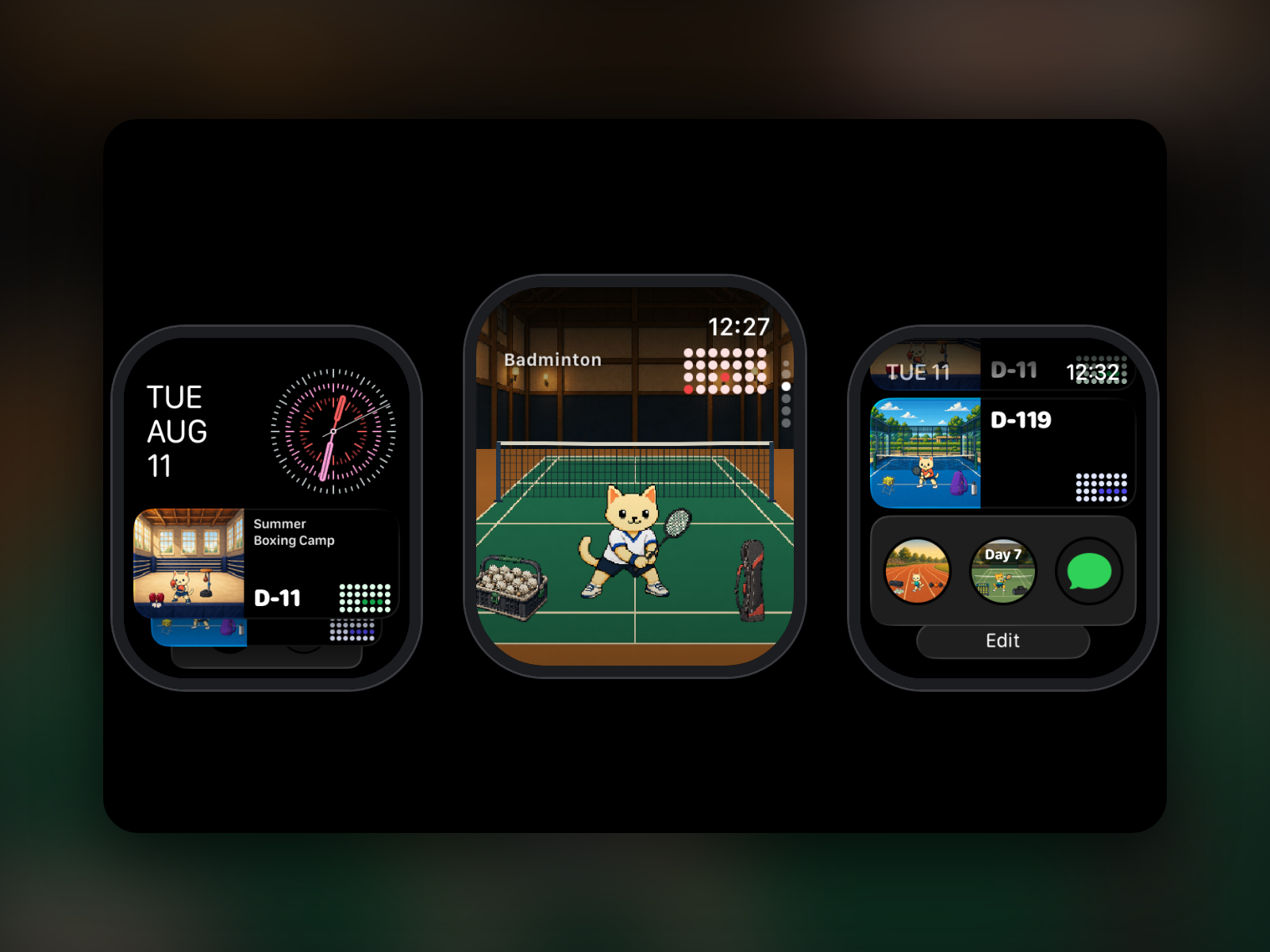
Sportling gives each of your sports a pixel art space and turns workout days into check-ins, shown on a calendar and heatmap. You can import workouts from Health Connect or check in with one tap. On Galaxy Watch, Pixel Watch, and other Wear OS watches it works with the phone app as a tile and as complications.
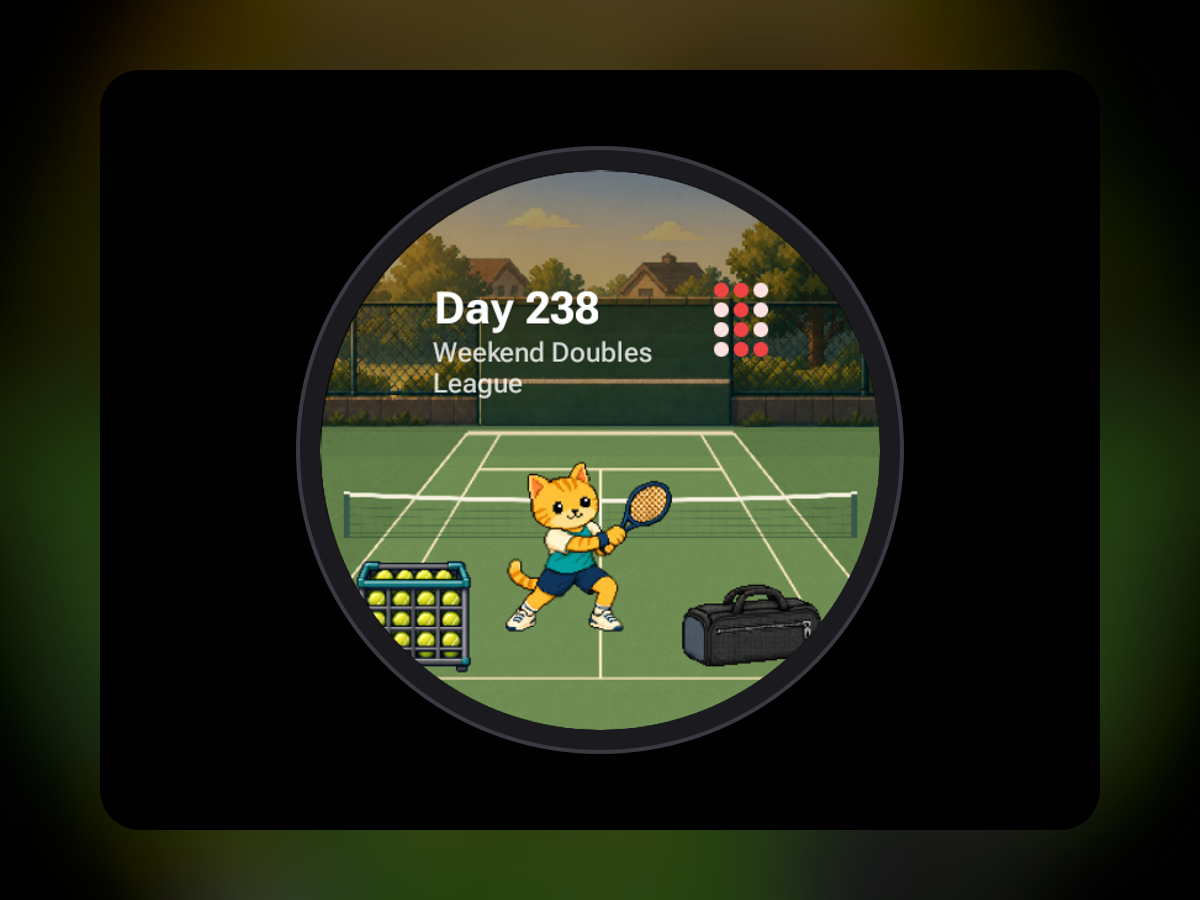
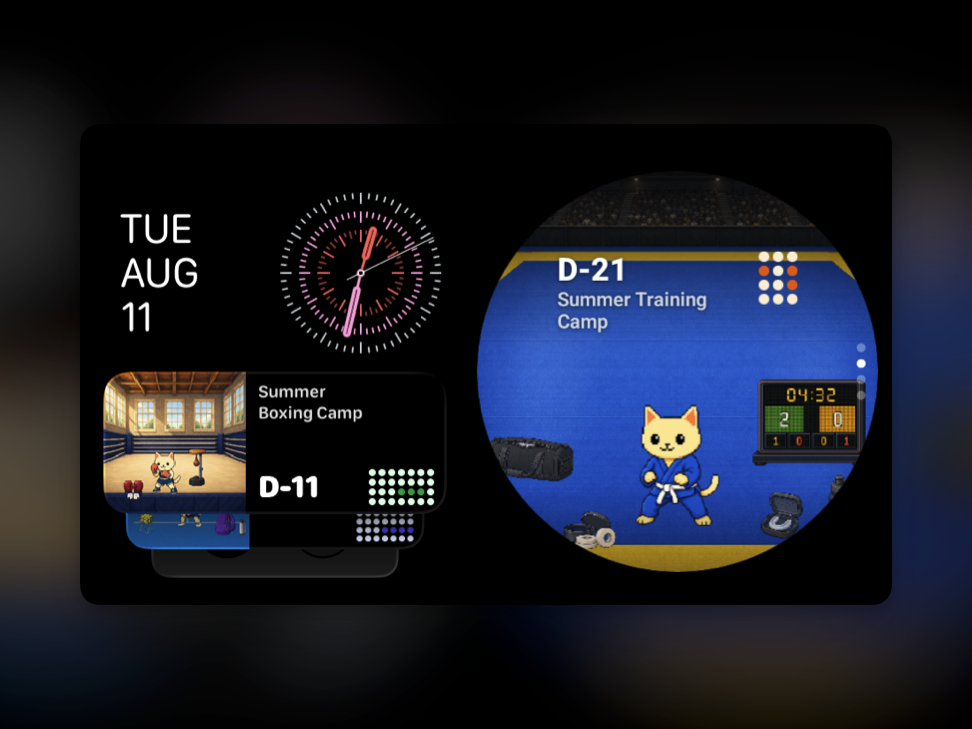
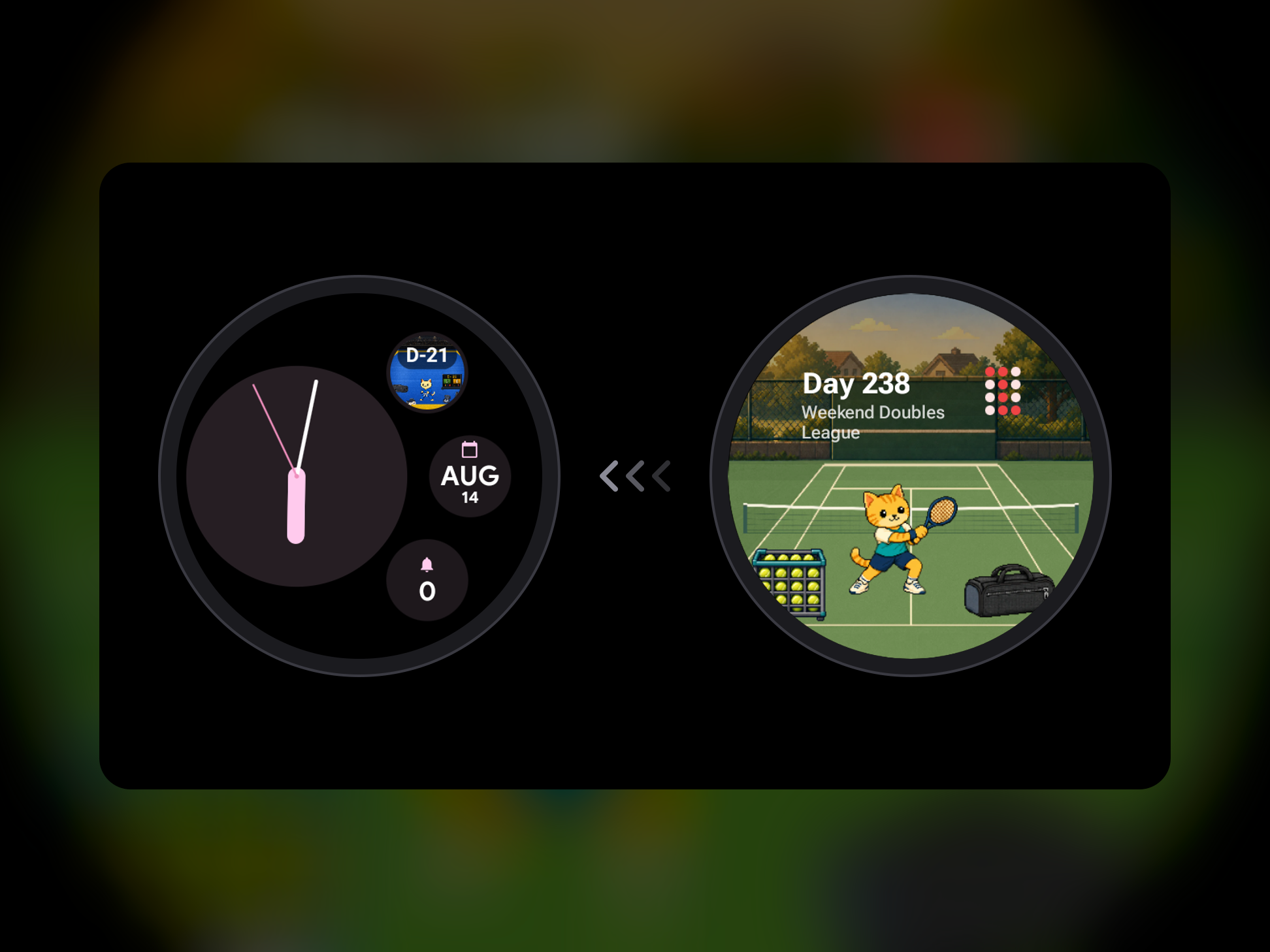
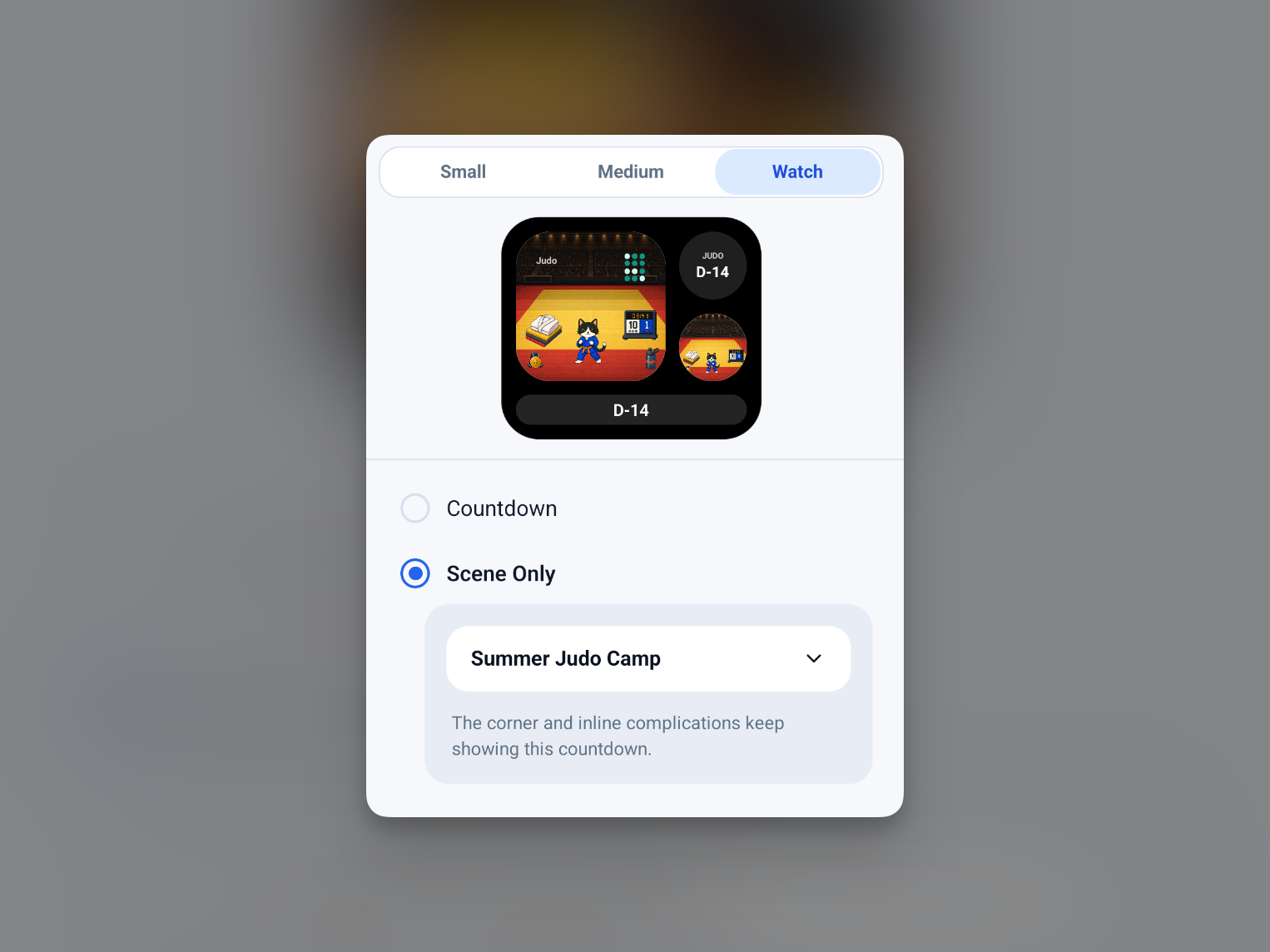
The tile shows your sport scene, goal name, the countdown (or how many days since you started), and a recent workout heatmap. Choose what it shows from the Watch tab of the widget settings in the Sportling phone app: a countdown, or the scene only.
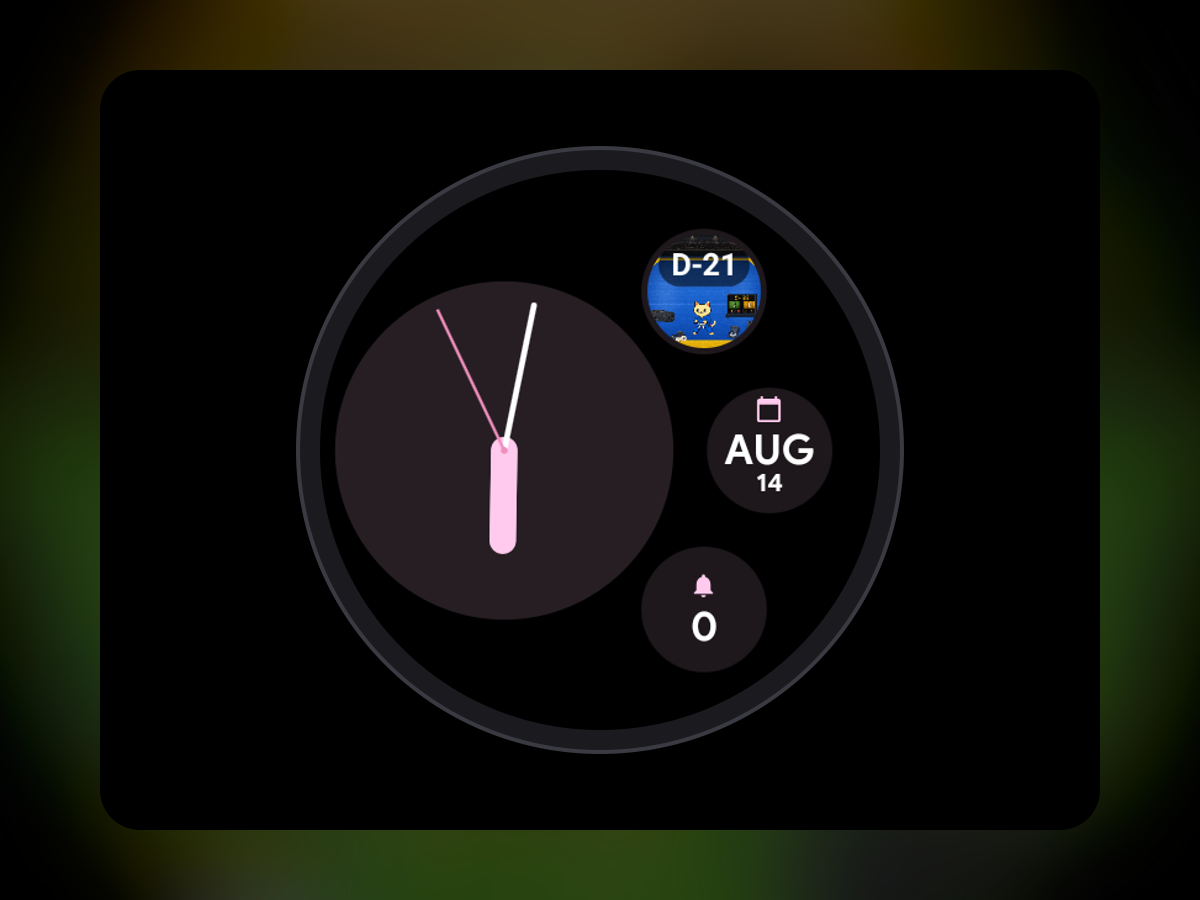
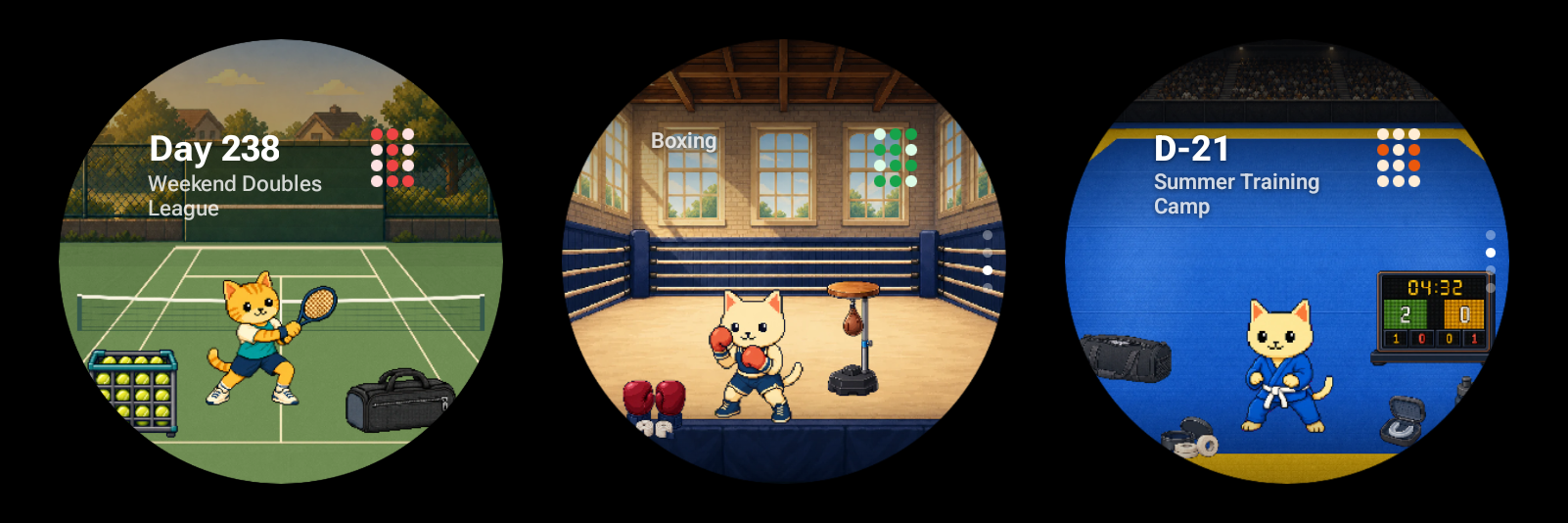
Sportling also has complications: a countdown in number form, or your sport scene in a round slot. Following the rule above, it splits like this:
- Complication: days left until your next race or tournament
- Tile: your sport scene, this week's heatmap, and the goal name
Best Wear OS complications for workouts, and how to add them
Each watch face has its own number and shape of slots. Touch and hold the watch face, tap Customize, tap a complication slot, and choose an app. For workouts, these are a safe start:
- Steps or daily activity, always in view
- Heart rate, for a glance mid-workout
- A countdown, if you are training for a race or tournament
- Battery, before a long run
On a watch face with few slots, keep them for numbers and move everything else to tiles. For more on Sportling's watch features, see Your Workout Space on Your Wrist; for phone home screen widgets, see the pixel art workout widget post.
On iPhone and Apple Watch? The same approach is covered in the Apple Watch complications and Smart Stack guide.
FAQ
How many tiles can I add?
Samsung says recent Galaxy watches hold up to 15. When you reach the limit, remove one to add another.
Are Wear OS tiles and widgets the same?
On the watch, yes. Newer versions of Wear OS and One UI Watch call tiles widgets. They are different from the widgets on your phone's home screen.
Why is an app's tile missing?
Only apps that provide a tile show up, and the app has to be installed on the watch. If it is only on your phone, install the watch app from Google Play on the watch. You cannot create custom tiles yourself.