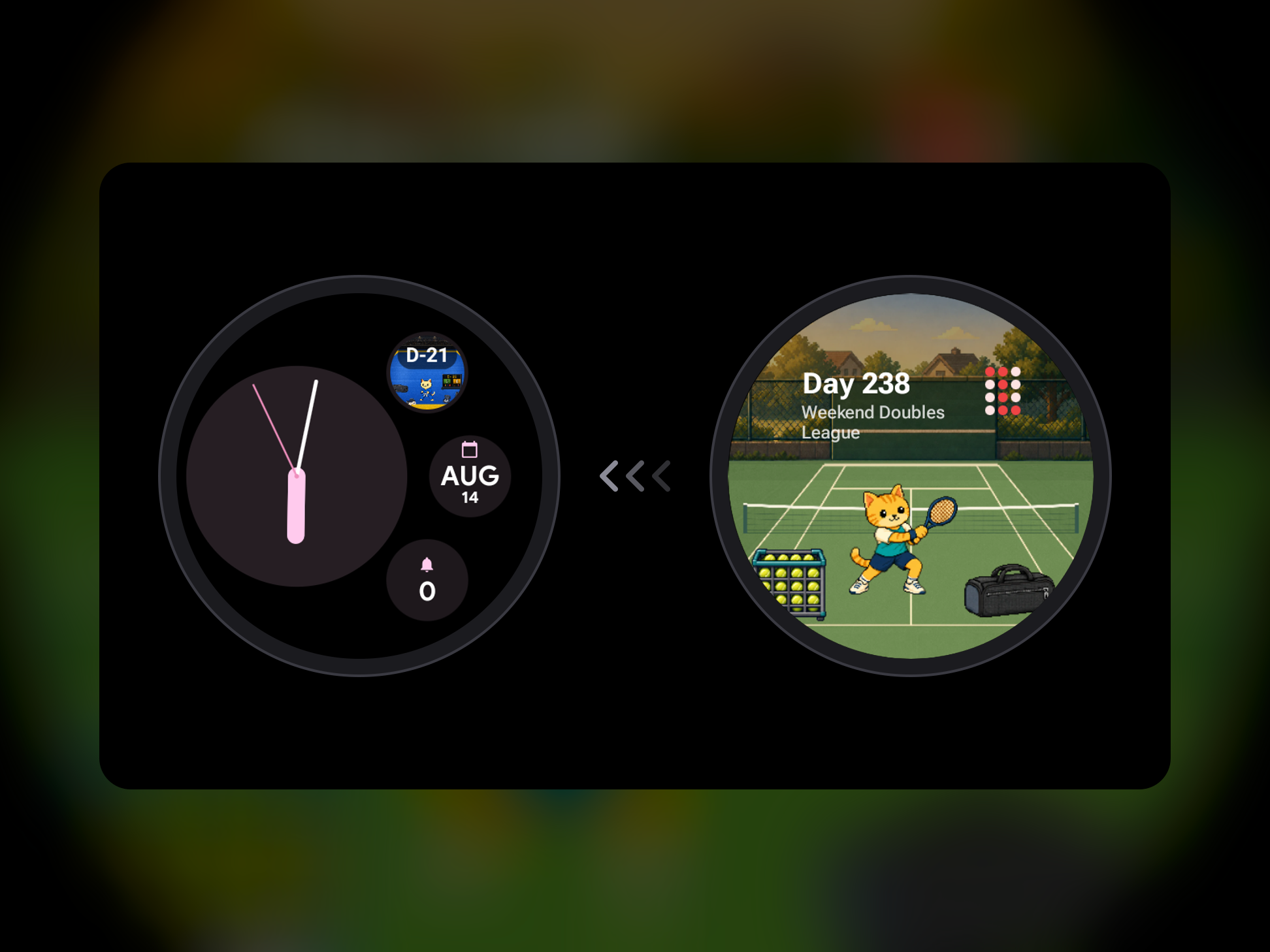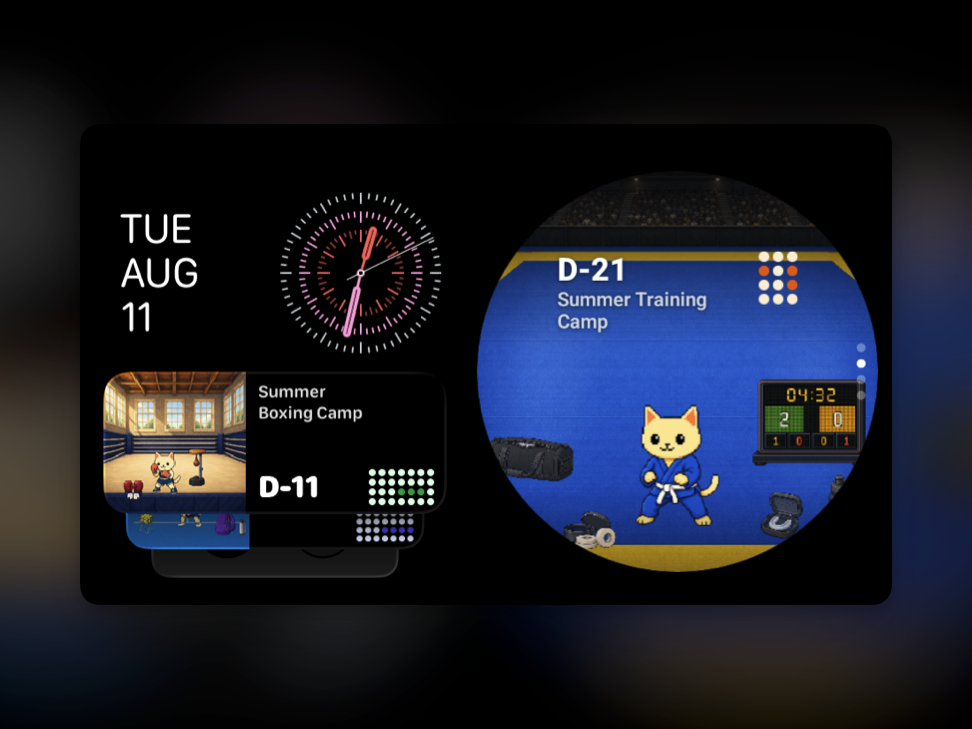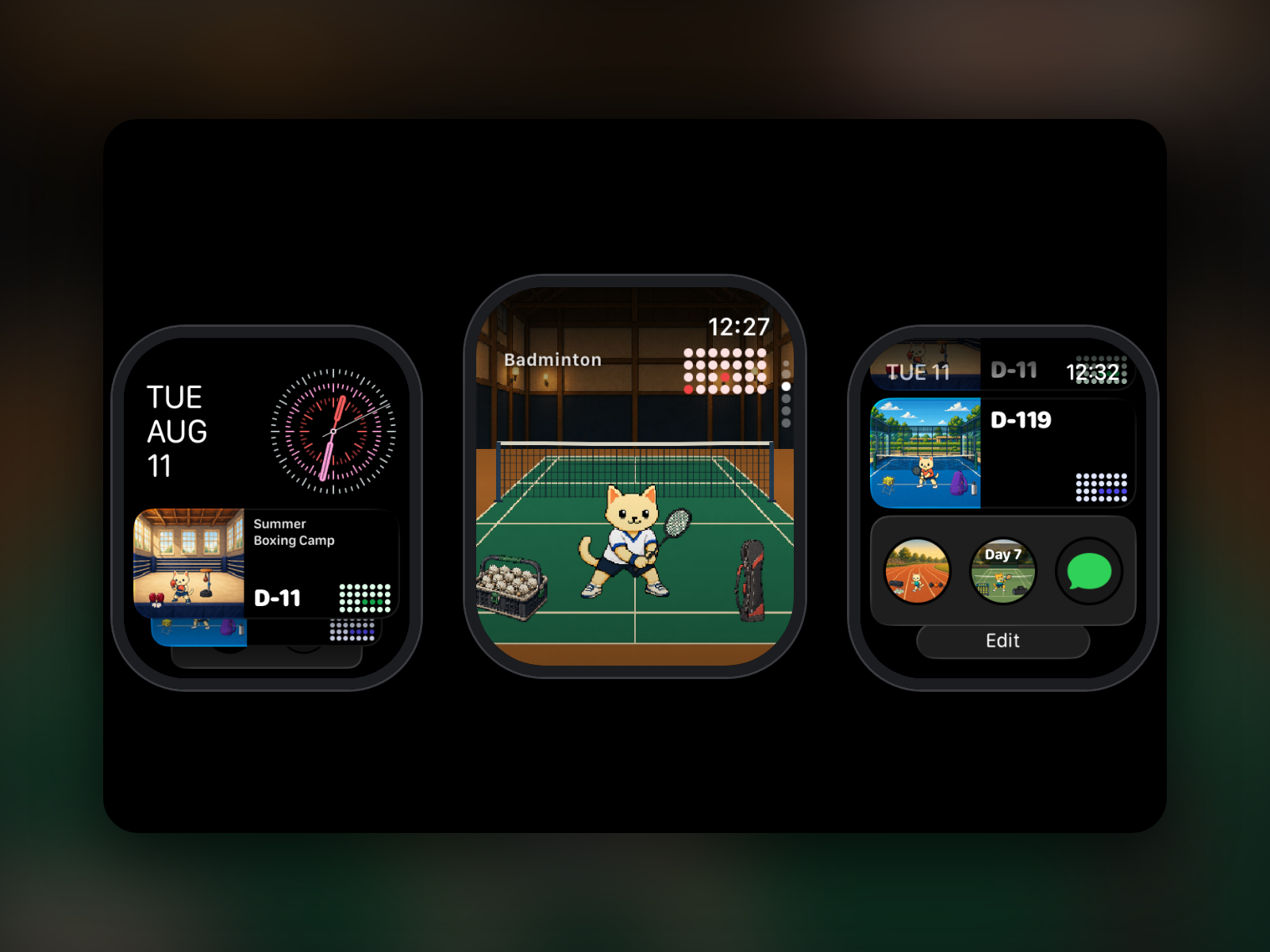
There are two places on Apple Watch where workout information is one glance away: Apple Watch complications, the small slots on your watch face that you see every time you check the time, and the Smart Stack, the list of widgets that appears when you turn the Digital Crown up from the watch face. Put what you need during a workout in complications and what you want to review before or after a workout in the Smart Stack, and your wrist gets a lot less cluttered.
This guide covers what the Apple Watch Smart Stack is, how to add widgets to the Smart Stack and change their order, and how to add complications. It ends with a complication and widget setup that works well for people who train regularly. Steps follow Apple's Apple Watch User Guide for the current watchOS.
What is the Apple Watch Smart Stack?
The Smart Stack is a stack of widgets that sits below your watch face. According to Apple, it suggests helpful information based on the time of day, your location, and recent activity, and it also shows Live Activities that update in real time during workouts, timers, and more.
- Open it: from the watch face, turn the Digital Crown up or swipe up from the bottom of the screen. Tap a widget to open its app.
- Hints: when there is a timely suggestion, your watch gently taps your wrist and shows a small icon at the bottom of the watch face. Tap it to open the Smart Stack, or swipe down on it to mute that hint for 24 hours.
- At the bottom: scroll all the way down for quick access to apps like Music, Workout, and Messages, and for the Edit button.
How to add widgets to the Apple Watch Smart Stack
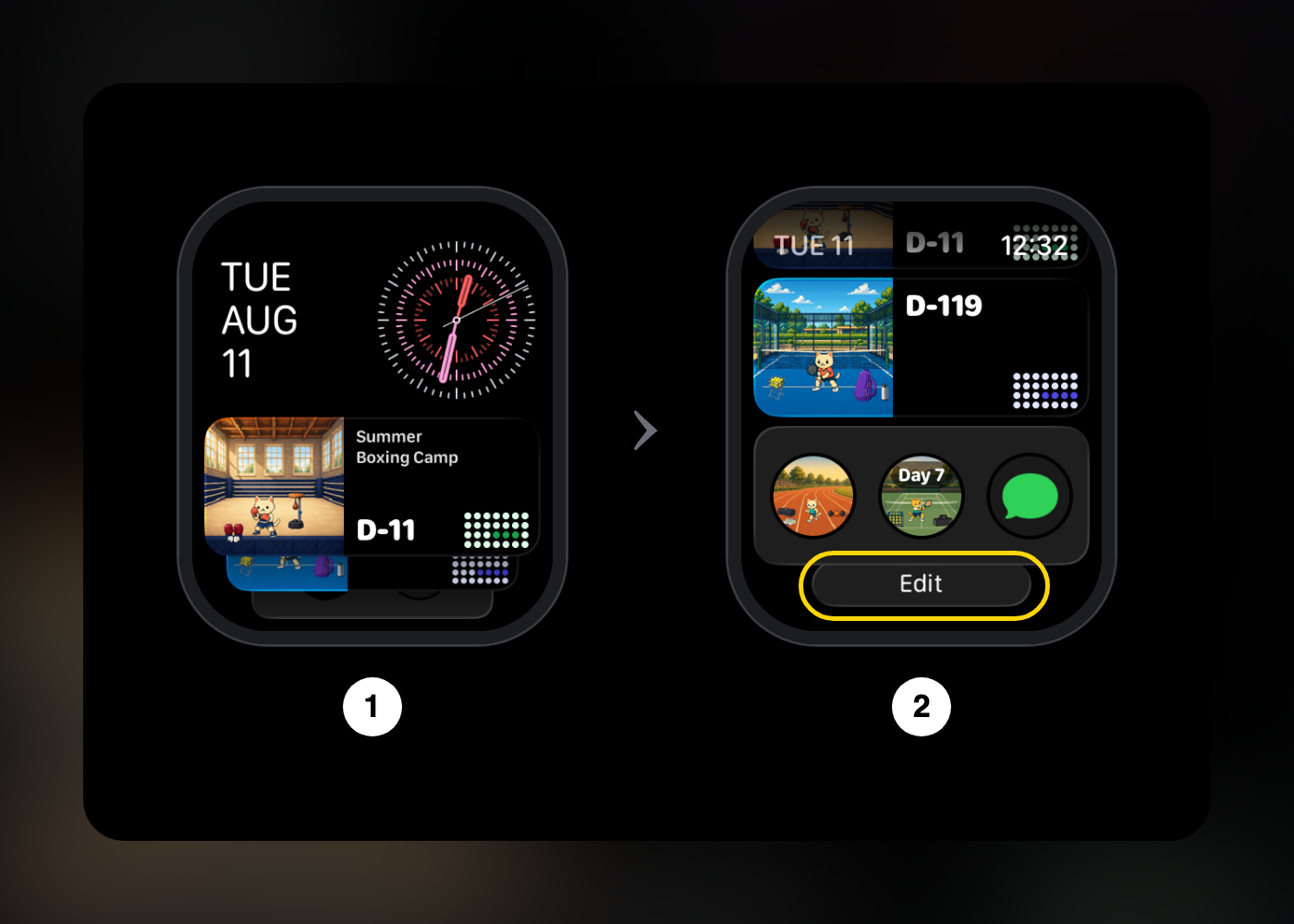
- From the watch face, turn the Digital Crown up to open the Smart Stack.
- Scroll to the bottom and tap Edit.
- Tap the Add Widget button (+), then choose an app and a widget. Some widgets have an expand button with more options.
- Tap the Done button to finish.
How to reorder, pin, and remove Smart Stack widgets
Because the Smart Stack reorders widgets based on what it thinks you need, pin the widgets you always want in the same place. In edit mode you can:
- Pin: tap the Pin button on the right side of a widget to keep it in a fixed position.
- Reorder: touch and hold a pinned widget, then drag it up or down.
- Remove: tap the widget's Delete button.
If you train on a regular schedule, pinning one or two widgets and leaving the rest to Smart Stack suggestions keeps the stack from getting crowded.
How to add complications to your Apple Watch face
On Apple Watch
- Touch and hold the watch face, then tap Edit.
- Swipe left all the way to the end to reach the complications screen.
- Tap the slot you want to change, then turn the Digital Crown to choose a complication.
- Press the Digital Crown to save, then tap the face.
In the Watch app on iPhone
- Open the Apple Watch app on iPhone and tap Face Gallery.
- Choose a watch face.
- Tap a complication position such as Top Left, Top Right, or Bottom, and choose what goes there. Choose Off to leave it empty.
- Tap Add to send the face to your watch.
Each watch face has a different number and shape of complication slots (circular, corner, rectangular, and inline text). If the complication you want isn't in the list, try another slot or a face with more slots.
The best Apple Watch complications and widgets for workouts
The rule of thumb is simple: what you check during a workout goes in a complication, and what you review before or after goes in the Smart Stack.
| Where | What | Why |
|---|---|---|
| Complication | Activity (rings) | How close you are to today's Move, Exercise, and Stand goals |
| Complication | Workout | Open the Workout app and start tracking in one tap |
| Complication | Heart Rate | Check your heart rate before warm-up or between sets |
| Complication | Weather (temperature, rain, UV) | Before outdoor runs, hikes, and rides |
| Complication | Sportling countdown | Days left until your next race, match, or belt promotion |
| Smart Stack (pinned) | Sportling heatmap widget | Your workout scene, goal name, countdown, and recent heatmap |
| Smart Stack (automatic) | Workout Live Activity | Appears on top during a workout without adding anything |
A face with four or five complication slots fits all five complications above. On a face with fewer slots, start with Activity rings and the Workout shortcut, then add a countdown when you have a dated goal like a race or a tournament.
Adding a race countdown complication and a workout heatmap widget
Apple's built-in apps don't have a place for "how many days until my next match" or "how consistent have I been lately." I fill those two gaps with Sportling, an app I made. Sportling logs workout days with a one-tap check-in or from your Apple Health workouts, and saves races, first classes, and other big dates as countdowns. You can decorate a pixel art workout space for each of 34 sports, from Jiu-Jitsu and running to weight training and tennis.
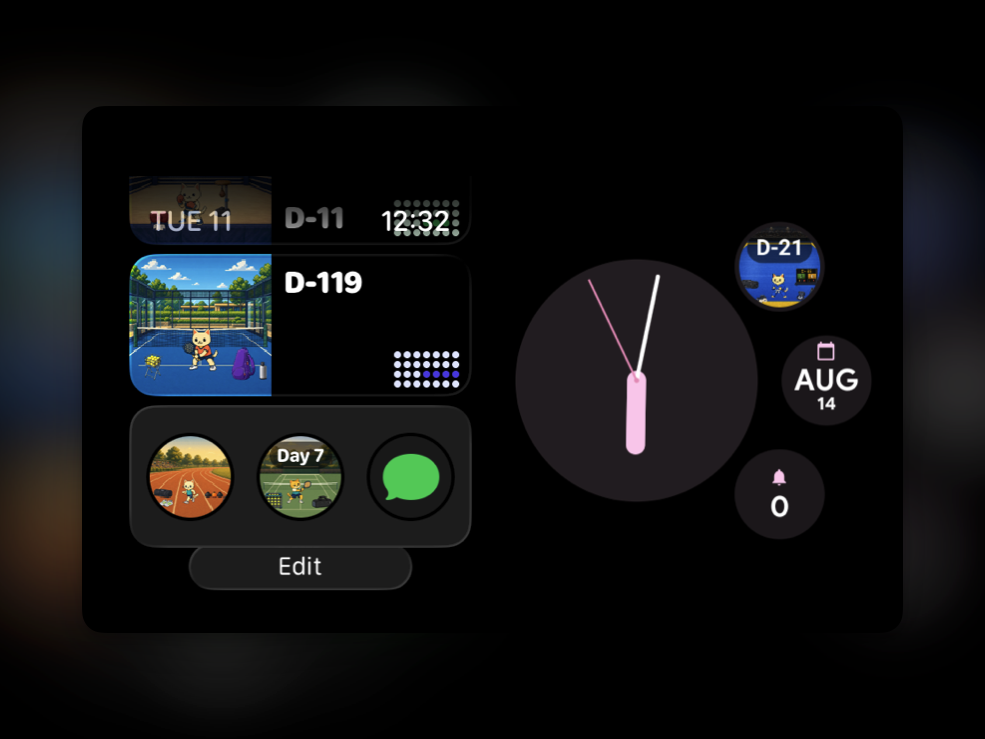
You choose what appears on your watch in the Sportling widget settings on iPhone, under the Watch tab. Pick which countdown to show, whether to show its title, whether to show only the workout scene, and whether to include the heatmap. The preview shows how the rectangular, circular, corner, and inline complications will look.
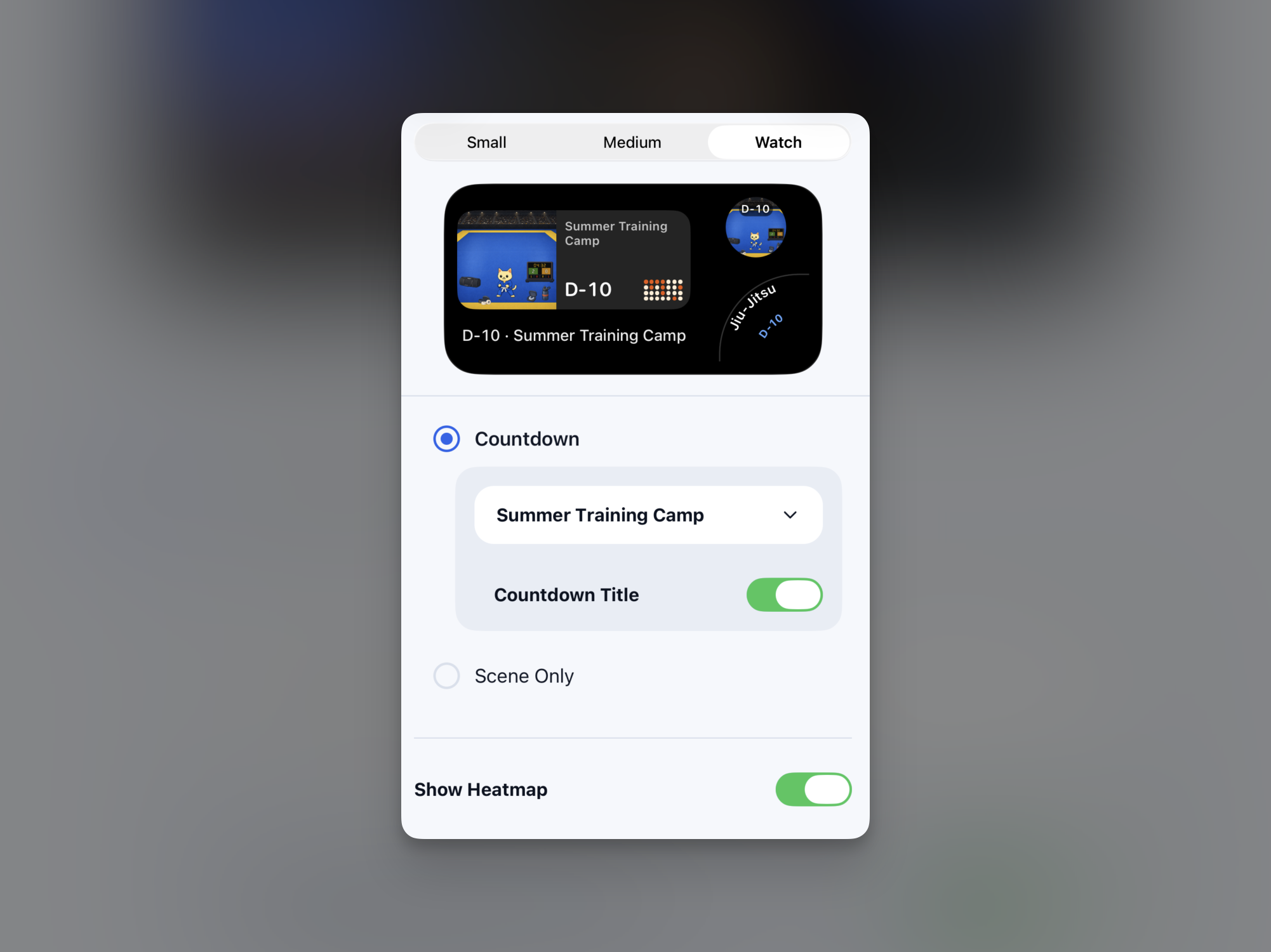
Then use the same steps as above: add Sportling from Add Widget in Smart Stack edit mode and pin it, and choose the Sportling countdown for a slot when editing your watch face. For more about the watch app itself, see Your Workout Space on Your Wrist. On a Galaxy Watch or other Wear OS watch, see the best Wear OS tiles for workouts.
FAQ
An app doesn't show up when I add a Smart Stack widget
You can only add widgets from apps installed on your watch. In the Watch app on iPhone, check under My Watch that the app is installed on your Apple Watch.
The complication I want isn't in the list
Each face and slot accepts different complication shapes. Try another slot on the same face, or a different watch face.
The Smart Stack keeps changing the order of my widgets
Widgets that aren't pinned move around based on the time of day and your activity. Pin the ones you always want in the same place.
Sources: Apple Watch User Guide – See timely widgets in the Smart Stack, Apple Watch User Guide – Add complications to the watch face